Settings
Overview
Configure server-level settings, including identity, storage, security, database access, and notifications.
Note
On Azure App Service, manage these settings in the Azure portal. The page shows an informational banner and disables most edit actions.
Key tasks
- Review the server name, public URL, code-signing configuration, storage, security, database, and notification settings.
- Download a server support package for troubleshooting.
- Edit server, package storage, security, database, and notification settings when available.
- Clean orphaned storage files or migrate package files after enabling Azure Storage.
- Open the Users page when authentication is enabled.
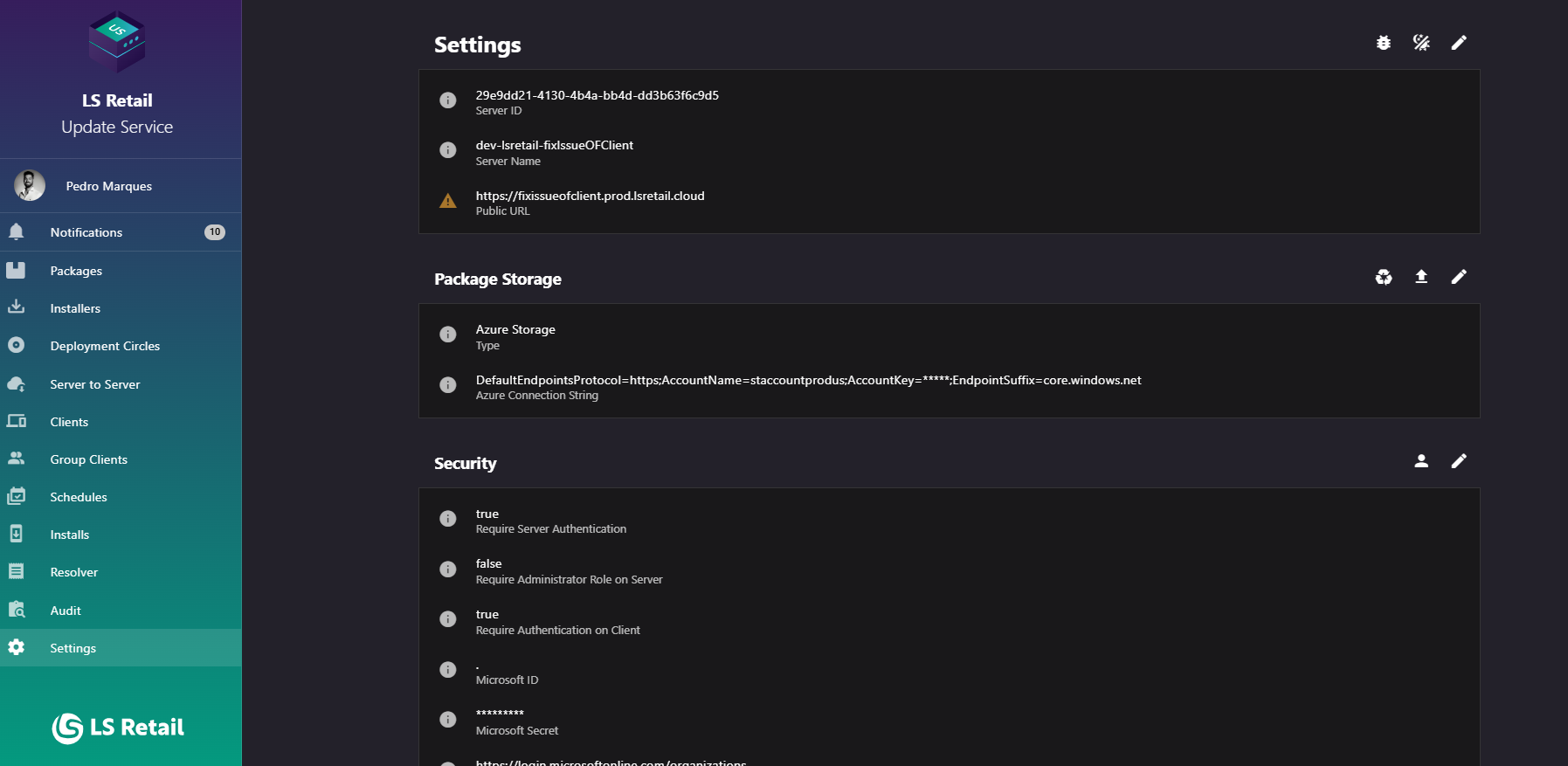
Figure: Settings screen.
UI reference
| Element / Field Name | Type | Description & Triggered Action |
|---|---|---|
| Download server support package | Button | Opens a download of a server-side debug/support package for troubleshooting. |
| Theme toggle | Button | Switches the management UI between light and dark theme; the preference is remembered. |
| Edit Server Settings | Button | Opens the Edit Server Settings dialog. Hidden for SaaS instances. |
| Server ID | Field (display) | The unique identifier of this server installation. |
| Server Name | Field (display) | The display name of the server, as seen by connecting clients and servers. |
| Public URL | Field (display) | The externally reachable URL of the server. Shows a warning if it is unset (it then defaults to the machine's own address) or points to localhost. |
| Code Signing SSL Certificate | Field (display) | Summarizes the configured code signing certificate (find type, store name, store location, find value, and timestamp server URL), if code signing is enabled. |
| Clean Storage Files | Button | Triggers a server-side cleanup of orphaned package storage files. Shows a progress indicator while the cleanup task is running. |
| Migrate files to azure | Button | Opens the Migrate to Azure Storage dialog. Only shown when Azure Storage is enabled. Shows a progress indicator while a migration task is already running. |
| Edit Package Settings | Button | Opens the Edit Package Storage Settings dialog. |
| Storage Type / Connection / Directory | Field (display) | Shows either the Azure Storage connection string (with sensitive parts obfuscated) or the local File Storage Directory, depending on which storage type is active. |
| Users view | Button | Navigates to the Users administration screen. Only shown when authentication is required on the server or client. |
| Edit Security Settings | Button | Opens the Edit Security Settings dialog. |
| Require Server Authentication / Require Administrator Role on Server / Require Authentication on Client | Field (display) | Show the current on/off state of the corresponding authentication requirement. |
| Microsoft ID / Microsoft Secret / Microsoft Authority Endpoint | Field (display) | Show the configured Microsoft Entra ID application details; the secret is always masked. |
| Edit Database Settings | Button | Opens the Edit Database Settings dialog. |
| Database Connection String | Field (display) | Shows the current database connection string with sensitive parts (password/account key) obfuscated. |
| Edit Notification Settings | Button | Opens the Edit Notification Settings dialog. |
| Smtp Server / Smtp Address / Smtp Username / Smtp Password / Smtp Port / Email template Path / Smtp SSL enabled | Field (display) | Show the current outgoing email configuration; the password is always masked. |
| Notification channels | Field (display) | Lists the notification channels enabled by default for users who have not customized their own preferences. |
Edit server settings
Use this dialog to configure the server identity and code-signing settings.
- Server Name — the name shown to connecting clients and servers. Required.
- Public URL — the address clients use to reach this server; validated as a URL if provided. Leave empty to use the machine's hostname.
- Code Signing Enabled — toggle to turn installer code signing on or off.
- When code signing is enabled, the following fields become required: Code Signing Certificate Find Type, Code Signing Certificate Store Name, Code Signing Certificate Store Location, and Code Signing Certificate Find Value.
- Code Signing Timestamp Server Url — optional; validated as a URL if provided, leave empty to use the default.
- Restart the server after changing settings that require a restart.
| Element / Field Name | Type | Description & Triggered Action |
|---|---|---|
| Server Name | Field | Name of the server shown to clients and other servers. Required. |
| Public URL | Field | Publicly reachable URL of the server. Must be a valid URL if provided. |
| Code Signing Enabled | Toggle | Enables or disables installer code signing, unlocking the certificate fields below. |
| Code Signing Certificate Find Type | Field (dropdown) | Certificate lookup method (e.g., FindByThumbprint, FindBySubjectName). Required if code signing is enabled. |
| Code Signing Certificate Store Name | Field (dropdown) | Windows certificate store to search (e.g., My, Root). Required if code signing is enabled. |
| Code Signing Certificate Store Location | Field (dropdown) | Certificate store location (LocalMachine or CurrentUser). Required if code signing is enabled. |
| Code Signing Certificate Find Value | Field | Value used to locate the certificate (e.g., thumbprint). Required if code signing is enabled. |
| Code Signing Timestamp Server Url | Field | URL of the timestamp server used when signing. Must be a valid URL if provided. |
| Cancel | Button | Closes the dialog without saving changes. |
| Submit | Button | Saves the server settings. |
Edit package storage settings
Use this dialog to choose where uploaded package files are stored.
- Choose the storage type: Azure Storage or Local Storage, using the radio selector.
- When Azure Storage is selected: provide the Connection string (required, password-masked field) and Container Name (required, validated as a valid Azure container name).
- Use Test Connection to verify the Azure Storage connection string and container before saving.
- File storage directory specifies the local path used for file storage.
- Submitting the dialog while Azure Storage is enabled prompts the Migrate to Azure Storage dialog to move existing files.
| Element / Field Name | Type | Description & Triggered Action |
|---|---|---|
| Storage type | Toggle (radio) | Chooses between Azure Storage and Local Storage. |
| Connection string | Field (password) | Azure Storage connection string. Required when Azure Storage is selected. |
| Container Name | Field | Azure Storage container name. Required and validated when Azure Storage is selected. |
| Test Connection | Button | Verifies that the server can connect to the specified Azure Storage account and container. |
| File storage directory | Field | Local directory path used to store package files. |
| Cancel | Button | Closes the dialog without saving changes. |
| Submit | Button | Saves the storage settings; if Azure Storage was just enabled, prompts to migrate existing files. |
Migrate to Azure Storage
After you enable Azure Storage, use this dialog to move existing package files from local storage.
- Migrate existing files to avoid client installation failures.
- Confirming tests the Azure Storage connection and starts the migration in the background.
- Can be cancelled without starting a migration.
| Element / Field Name | Type | Description & Triggered Action |
|---|---|---|
| Cancel | Button | Closes the dialog without starting a migration. |
| Submit | Button | Verifies the Azure Storage connection and starts the background migration of package files to Azure Storage. |
Edit security settings
Use this dialog to configure authentication and authorization for the server and clients.
- Require Server Authentication — toggles whether Microsoft Entra ID sign-in is required to access the server (management UI/API).
- Require Administrator Role on Server — restricts server access to users in the Administrator role; only enabled when server authentication is required, and automatically turned off if server authentication is disabled.
- Require Authentication on Client — toggles whether client machines must authenticate to install packages from this server.
- Client ID, Secret, and Authority Endpoint configure the Microsoft Entra ID integration; these become required when server authentication is enabled, and the Authority Endpoint is validated as a URL.
- Restart the server after changing security settings.
| Element / Field Name | Type | Description & Triggered Action |
|---|---|---|
| Require Server Authentication | Toggle | Requires Microsoft Entra ID sign-in to access the server. |
| Require Administrator Role on Server | Toggle | Restricts server access to Administrator-role users. Disabled unless server authentication is required. |
| Require Authentication on Client | Toggle | Requires client machines to authenticate before installing packages. |
| Client ID | Field | Microsoft identity application (client) ID. Required if server authentication is enabled. |
| Secret | Field (password) | Microsoft identity application secret. Required if server authentication is enabled. |
| Authority Endpoint | Field | URL of the Microsoft identity authority endpoint. Required and validated as a URL if server authentication is enabled. |
| Cancel | Button | Closes the dialog without saving changes. |
| Submit | Button | Saves the security settings. |
Edit database settings
Use this dialog to configure the server database connection.
- Database Connection String specifies the connection to the server's database.
- Use Test Connection to verify the connection string is valid and reachable before saving.
| Element / Field Name | Type | Description & Triggered Action |
|---|---|---|
| Database Connection String | Field | Connection string used by the server to reach its database. |
| Test Connection | Button | Verifies that the server can connect using the specified connection string. |
| Cancel | Button | Closes the dialog without saving changes. |
| Submit | Button | Saves the database connection string. |
Edit notification settings
Use this dialog to configure the outgoing SMTP server and default notification channels.
- Smtp Server, Smtp Address, Smtp Username, Smtp Password, and Smtp Port configure the outgoing mail server; these become required whenever the Email channel is selected as a default notification channel.
- SSL Enabled toggles secure transport for the SMTP connection.
- Email Template Path optionally points to a custom email template file; if left blank, the default template is used.
- Notification Channels selects which channels (for example, Email) are enabled by default for users who have not set their own preferences; at least one channel is required.
| Element / Field Name | Type | Description & Triggered Action |
|---|---|---|
| Smtp Server | Field | Hostname of the outgoing mail server. Required if the Email channel is enabled by default. |
| Smtp Address | Field | "From" email address used for outgoing notifications. Required if the Email channel is enabled by default. |
| Smtp Username | Field | Username used to authenticate with the mail server. Required if the Email channel is enabled by default. |
| Smtp Password | Field (password) | Password used to authenticate with the mail server. Required if the Email channel is enabled by default. |
| Smtp Port | Field | Port number of the mail server. Required if the Email channel is enabled by default. |
| SSL Enabled | Toggle | Enables SSL/TLS for the SMTP connection. |
| Email Template Path | Field | Full path to a custom email template file. Leave blank to use the default template. |
| Notification Channels | Field (multi-select) | Notification channels enabled by default for users without custom preferences. At least one is required. |
| Cancel | Button | Closes the dialog without saving changes. |
| Submit | Button | Saves the notification settings. |