Clients
How to update the Update Service client to the latest release?
The Update Service client is updated by installing a new version of the packages go-current-client and go-current-client-service. This means that the package must be available on the client's server, which is updated with a server update:
Update the Update Service server to the latest version:
- On the server host, open Start Menu->Update Service->Installed Components->Update Service Server->Check for updates
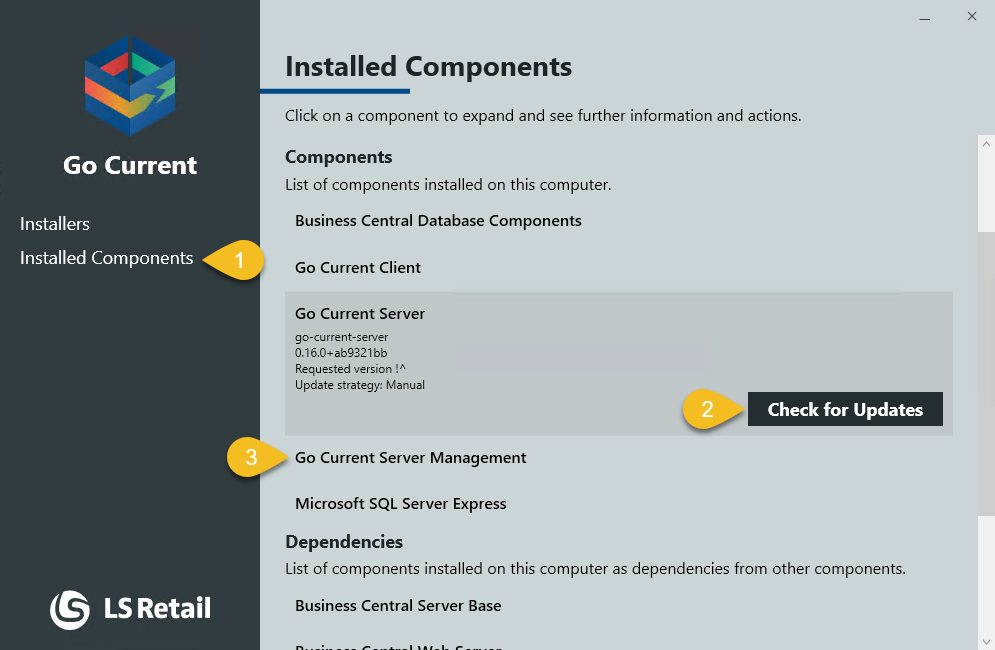
- or with PowerShell:
PS C:\> Import-Module UpdateService PS C:\> 'go-current-server', 'go-current-server-management' | Install-UscPackage- On the server host, open Start Menu->Update Service->Installed Components->Update Service Server->Check for updates
Update the client:
- Open Start Menu->Update Service->Installed Components->Update Service Client->Check for updates
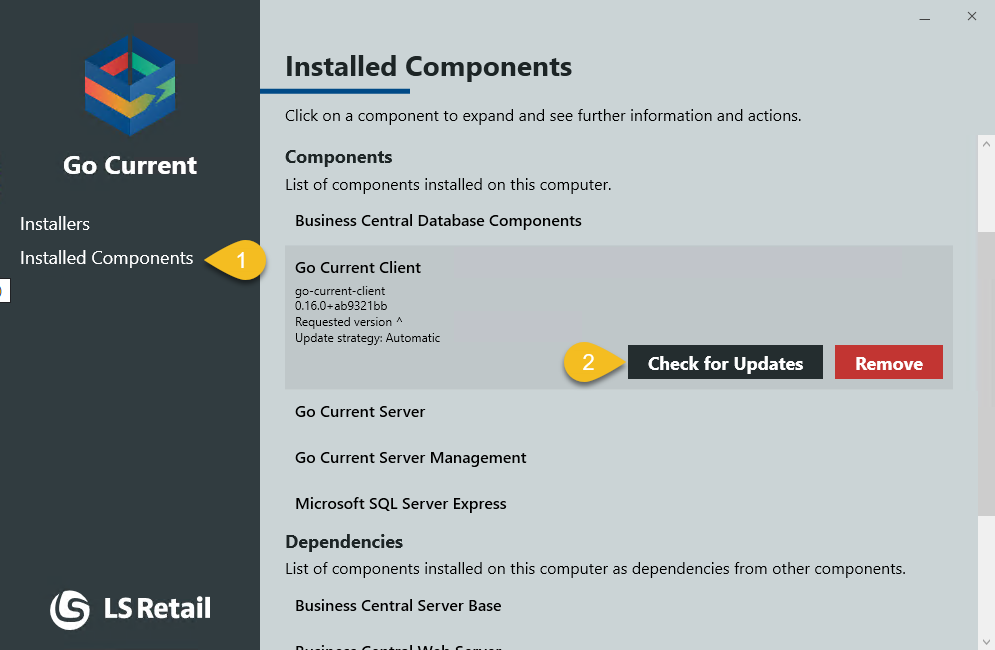
- or with PowerShell:
PS C:\> Import-Module UpdateService PS C:\> Install-UscPackage -Id 'go-current-client'- Open Start Menu->Update Service->Installed Components->Update Service Client->Check for updates
Note
If a client update is available, it is automatically included and installed in the next installation performed by the client.
Warning
Restart all PowerShell sessions to make the new version available.
What is an instance?
You can install some packages multiple times on the same machine, these packages are called instance packages.
- An instance can contain one or more instance packages.
- An instance is identified by an instance name.
- Each instance is assigned a unique directory which the instance packages can install into, by default, this directory is at C:\Program Files\LS Retail\Update Service\Instances\INSTANCE-NAME.
How to create and deploy a ghost image to multiple machines
When setting up multiple machines, creating a ghost image can be a convenient method to ensure consistency and efficiency. However, if you are working with Update Service, it's important to note that before creating the ghost image, the client ID must be removed from the machine. Failure to do so can lead to issues with Update Service recognizing the machines as separate entities. This guide will walk you through the process of creating a ghost image while taking into account the necessary steps for using it with Update Service.
Preparing the Machine:
- Install the necessary software components on the machine, using Update Service or any other setup medium.
Removing the client ID:
Before creating the ghost image, it's important to remove the ID property from the JSON file C:\programdata\LS Retail\GoCurrent\Client\ClientData.json This property will be re-populated with a random GUID the next time Update Service is started.
For example, the file content before the removal:
{
    "Id": "f03cb06c-9abe-48e1-a2ab-b73d0496a6bd",
    "IsContainer": false,
    "DefaultServiceUserCreated": true
}
The file content after removal:
{
    "IsContainer": false,
    "DefaultServiceUserCreated": true
}
Warning
Before creating a ghost image, make sure you don't open or run Update Service to prevent this property from getting filled up.
Creating the Ghost Image:
- Once the machine is ready, create the ghost image using your preferred imaging software.
Testing the Image:
- After deploying the image on a new machine, check that the ID property is not present in the JSON file. Start Update Service and verify that the property has been populated with a new, unique GUID.
By following these steps, you will be able to create a ghost image that can be deployed to multiple machines while preserving the proper configuration for Update Service.