Installer Details
Overview
Use the Installer Details screen to configure an installer and manage its package order. You can edit, download, open, or delete the installer. Select an installer from Installers to open this page.
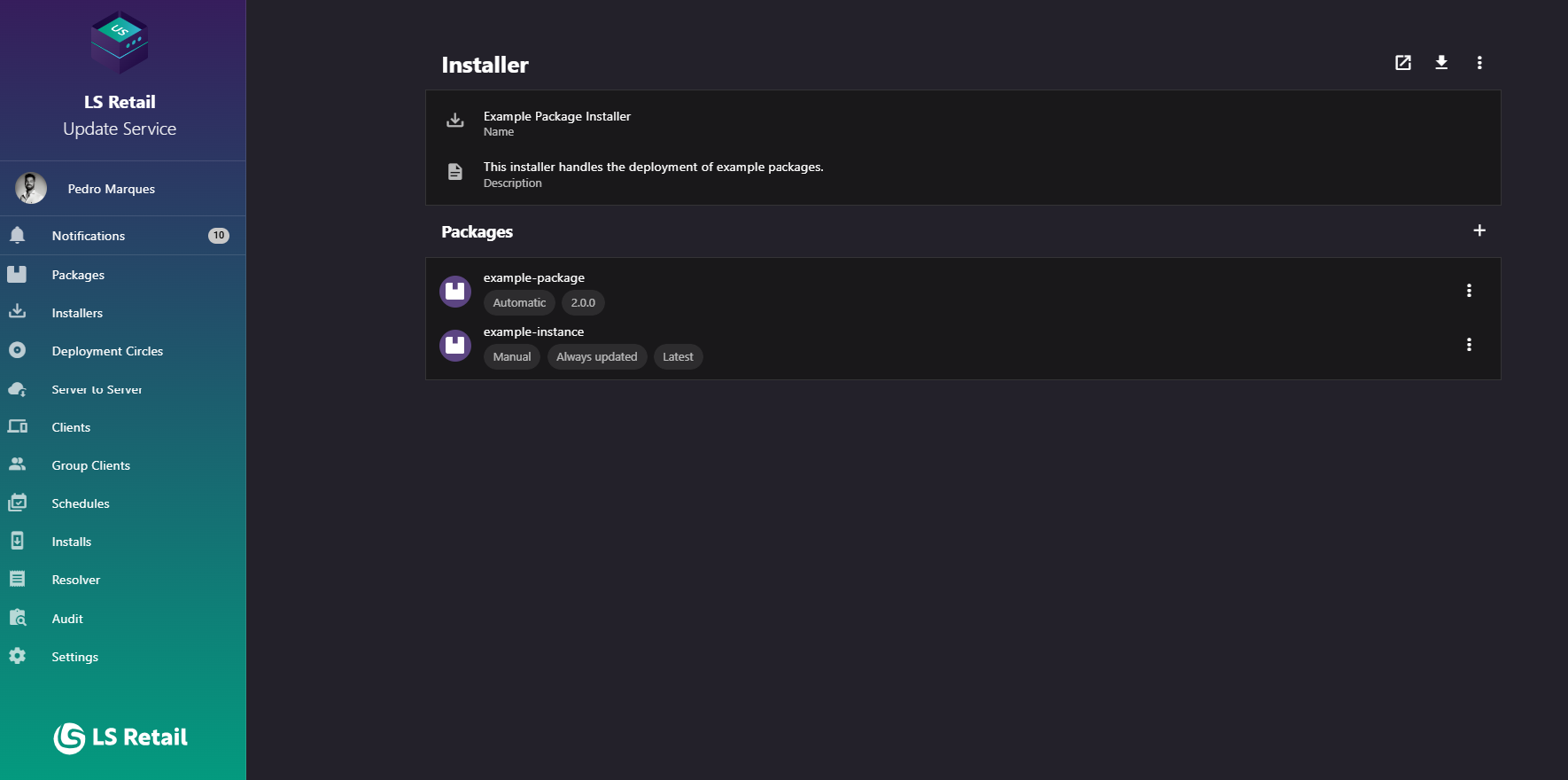
Figure: Interface overview of the Installer Details screen.
Key tasks
- Review the installer name, description, and included packages.
- Open the wizard or download the installer package.
- Edit or delete the installer.
- Add, edit, remove, or reorder packages. Package order saves automatically.
Interface elements
| Element / Field Name | Type | Description & Triggered Action |
|---|---|---|
| Open Wizard | Button | Opens the installer wizard for this installer in a new browser tab. |
| Download installer | Button | Downloads the installer package file for this installer. |
| Options menu (⋮) | Button / Menu | Opens a menu with Edit and Remove actions for the installer. |
| Edit | Menu Item | Opens the Edit Installer dialog, pre-filled with the installer's current name and description. |
| Remove | Menu Item | Prompts for confirmation, then permanently deletes the installer and returns to the Installers list. |
| Name | Field (read-only display) | Shows the installer's name. |
| Description | Field (read-only display) | Shows the installer's description. |
| Packages section title | Section Header | Groups the list of packages bundled in this installer. |
| Add package to installer | Button | Opens the Add/Edit Package dialog to add a new package to the installer. |
| Package list item | Grid/List Row | Each row shows the package ID (title) with the configured update strategy and version query settings as chips. Rows can be dragged to reorder them, with the new sequence saved automatically once dropped, and an options menu (⋮) on each row provides Edit and Remove actions for that package entry. |
| Edit (package) | Menu Item | Opens the Add/Edit Package dialog, pre-filled with the selected package entry's settings. |
| Remove (package) | Menu Item | Prompts for confirmation, then removes the package from the installer. |
| "No data" placeholder | Text | Shown in the packages list when the installer has no packages configured yet. |
Edit an installer
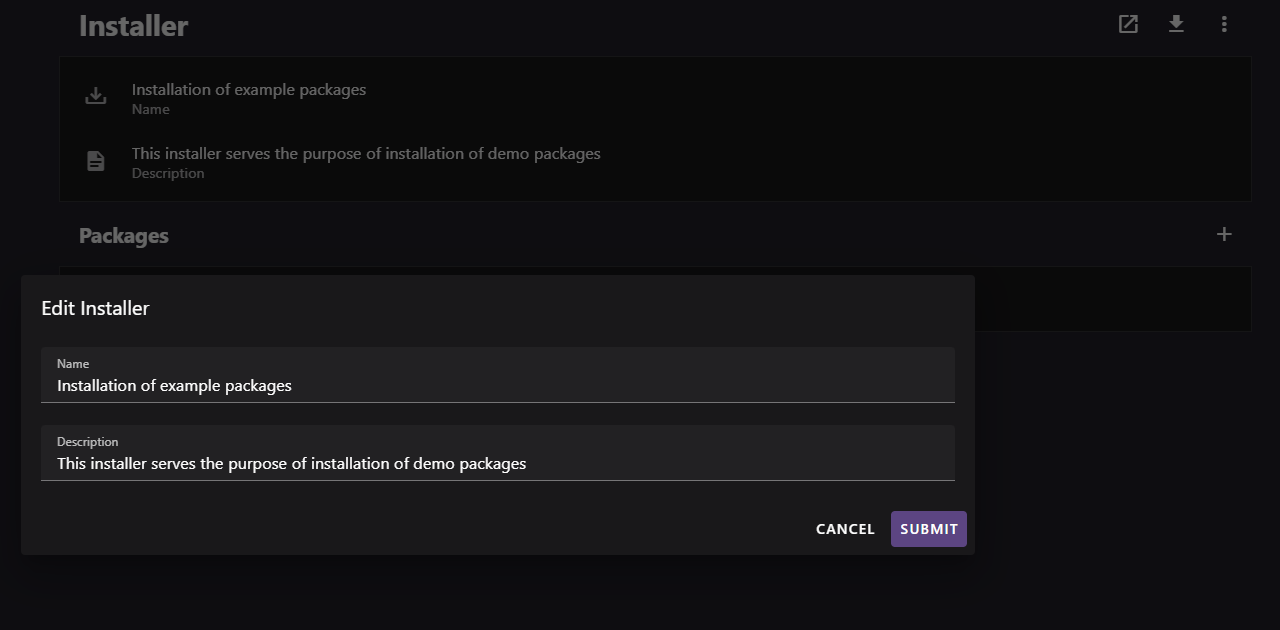
Figure: Interface overview for editing the information of an existing installer.
Use the Create an installer dialog to edit the installer. It opens with the current name and description. Save changes or cancel to discard them.
Add or edit a package
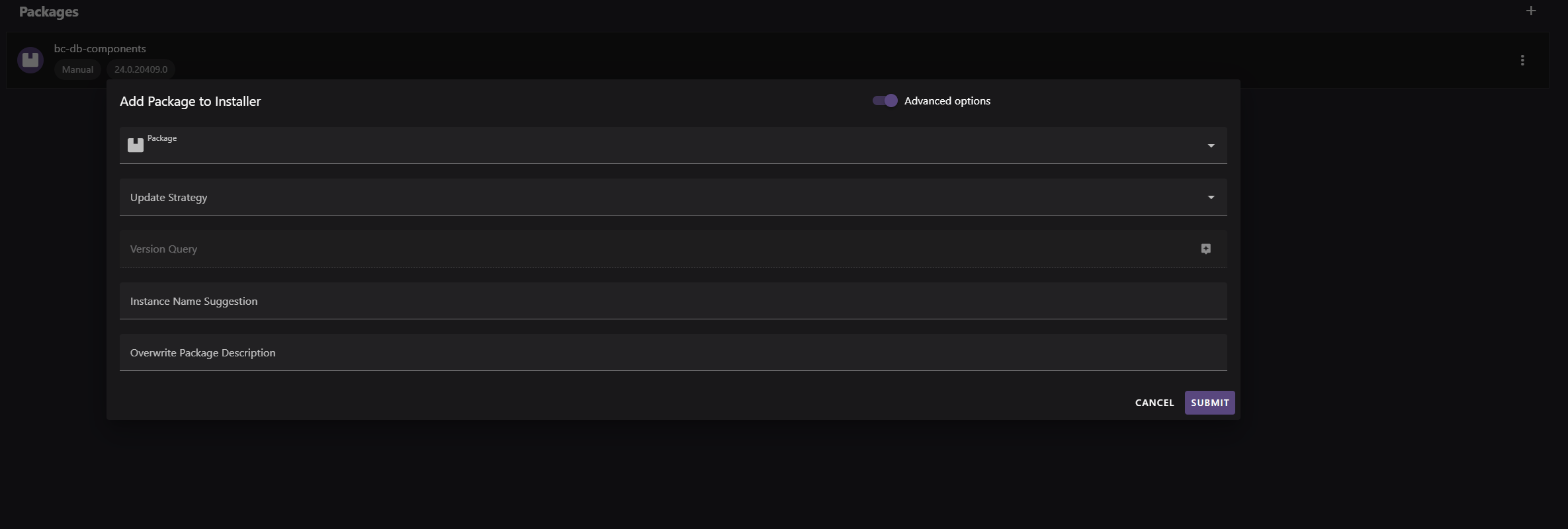
Figure: Interface overview for adding a new package to an installer.
Use this dialog to add a package or edit an existing package entry. Its title is Add Package to Installer or Edit Package in Installer, depending on the action.
| Element / Field Name | Type | Description & Triggered Action |
|---|---|---|
| Advanced options | Toggle | Shows or hides the advanced fields (Version Query, Instance Name Suggestion, Overwrite Package Description). Turning it off clears any values entered in those fields. |
| Package | Field (selector) | Required. Selects which package to include in the installer. Changing the selected package clears any previously entered version query. |
| Update Strategy | Field (dropdown) | Required. Determines how the package is kept up to date. Available values are Manual and Automatic. |
| Version Query | Field | Advanced option. Defines which version(s) of the package qualify, using version query syntax (for example, restricting to the latest version or allowing pre-releases). Leave empty to always use the latest version. Only visible when Advanced options is enabled. |
| Instance Name Suggestion | Field | Advanced option. Suggests an instance name for the installed package; must not contain spaces or the "+" character. Only visible when Advanced options is enabled. |
| Overwrite Package Description | Field | Advanced option. Overrides the package's default description for this installer entry. Only visible when Advanced options is enabled. |
| Submit / Save | Button | Validates the form and adds the package to the installer, or, when editing, saves the changes to the existing package entry. |
| Cancel | Button | Closes the dialog without saving any changes. |