Installers
Overview
Use the Installers screen to manage downloadable setup packages. An installer bundles software packages so users can install or update them through one wizard. Search, download, open, or create installers. Select an installer to open Installer Details.
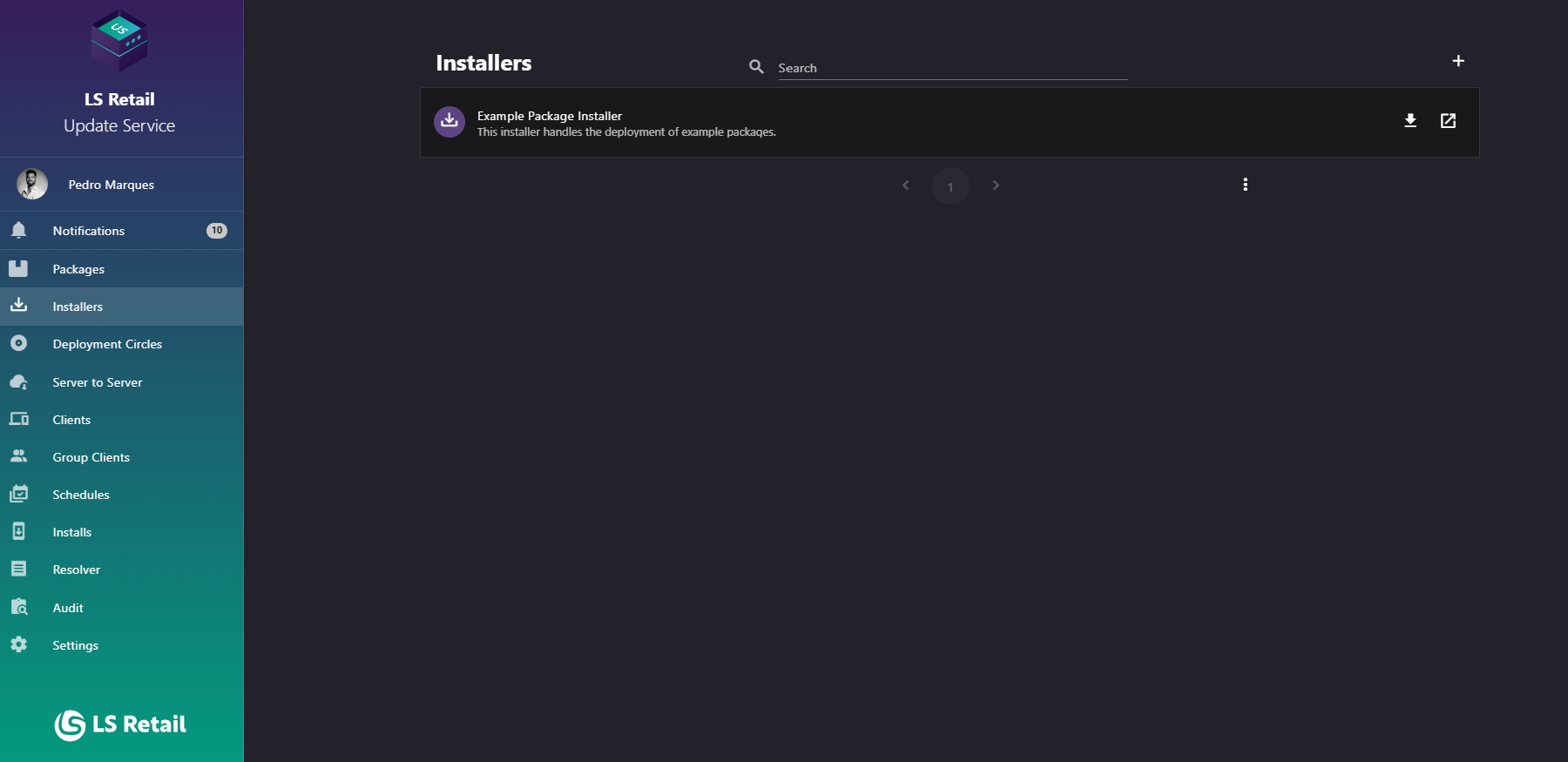
Figure: Interface overview of the Installers screen.
Key tasks
- Browse and search installers by name or description.
- Open an installer to manage its configuration.
- Download an installer package or open its wizard.
- Use New Installer to create an installer.
Interface elements
| Element / Field Name | Type | Description & Triggered Action |
|---|---|---|
| Search | Field | Filters the installer list by name or description; results filter as you type. |
| New Installer | Button | Opens the Create Installer dialog to define a new installer. |
| Installer list item | Grid/List Row | Each row shows the installer's name (title) and description (subtitle). Clicking the row opens the Installer Details page. |
| Download installer | Button | Downloads the installer package file for that row directly, without leaving the list. |
| Open Wizard | Button | Opens the installer wizard in a new browser tab for that installer. |
Create an installer

Figure: Create Installer dialog.
Use this dialog to create an installer or edit its details. Its title is New Installer or Edit Installer, depending on the action.
| Element / Field Name | Type | Description & Triggered Action |
|---|---|---|
| Name | Field | Required. The display name of the installer, shown in the installer list and detail page. |
| Description | Field | Required. A short description of the installer's purpose, shown in the installer list and detail page. |
| Submit / Save | Button | Validates the form and creates a new installer, or, when editing, saves the changes to the existing installer. On successful creation, the user is taken to the new installer's detail page. |
| Cancel | Button | Closes the dialog without saving any changes. |