Installs
Overview
Use the Installs screen to monitor install telemetry reported by Update Service clients. Filter by package, version, client, group, or user; identify failures; and open an event for details. Select an entry to open Install Detail.
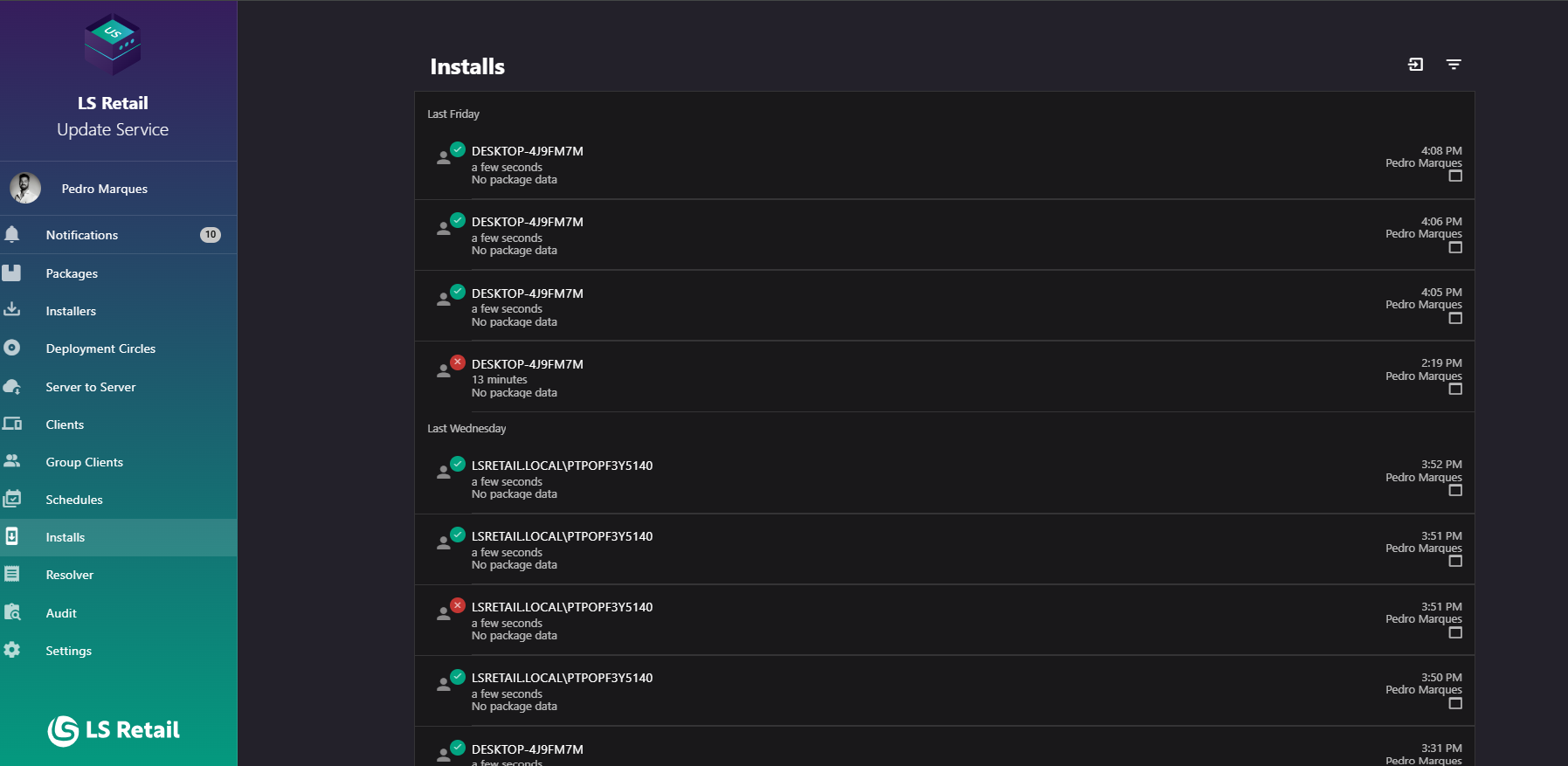
Figure: Interface overview of the Installs screen.
Key tasks
- Review install events grouped by date, including status, duration, client, packages, and user.
- Filter by package, version, date, client, group, user, or failures.
- Open an install event for details.
- Import install telemetry from a JSON file.
Interface elements
| Element / Field Name | Type | Description & Triggered Action |
|---|---|---|
| Import install telemetry | Button | Opens the Add Install Telemetry dialog to upload a telemetry JSON file into the server. |
| Show Filters | Button | Shows or hides the filter panel (see Filters below). |
| Install list item | Grid/List Row | Each row shows the client, a summary of packages installed, success/failure status (icon/badge), duration or elapsed time if still running, the timestamp or "in process" indicator, and the user who ran the install. Clicking the row opens the Install Detail page. |
| In-progress indicator | Icon (progress spinner) | Shown on rows for installs that are still running; the row updates live as the install progresses and completes. |
Filters
Use Show Filters to narrow the install list.
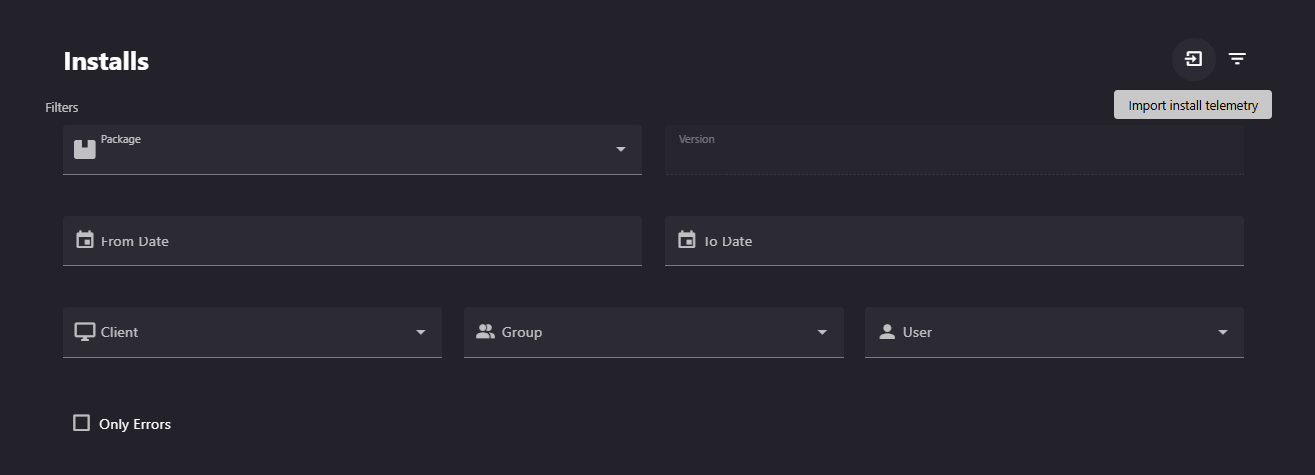
Figure: The Filters panel on the Installs screen.
| Element / Field Name | Type | Description & Triggered Action |
|---|---|---|
| Package | Field (selector) | Filters the list to installs that include the selected package. |
| Version | Field (combobox) | Filters the list to installs of the selected package version. Enabled based on the selected package. |
| From Date | Field (date picker) | Filters the list to installs occurring on or after the selected date. |
| To Date | Field (date picker) | Filters the list to installs occurring on or before the selected date. |
| Client | Field (selector) | Filters the list to installs performed by the selected client. Can optionally be scoped by the selected package. |
| Group | Field (selector) | Filters the list to installs performed by clients belonging to the selected group. |
| User | Field (selector) | Filters the list to installs performed by the selected user. Only shown when user authentication is enabled on the server. |
| Only Errors | Toggle (checkbox) | When enabled, restricts the list to install events that failed. |
Add Install Telemetry Dialog
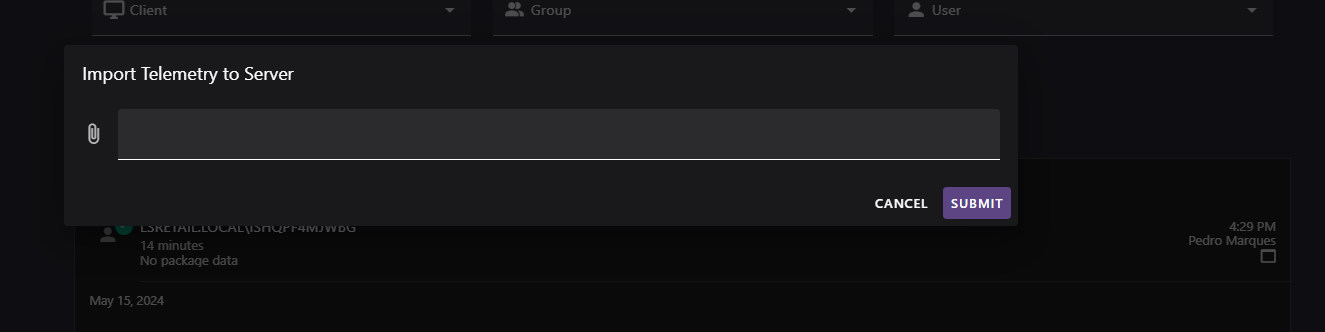
Figure: The import telemetry screen.
Use this dialog to import a previously exported install telemetry record, such as one from an offline environment.
| Element / Field Name | Type | Description & Triggered Action |
|---|---|---|
| File selector | Field | Accepts a single .json telemetry file; required before the dialog can be submitted. |
| Submit | Button | Validates the form, reads the selected file, and sends its contents to the server to be imported as an install telemetry record. On success, the dialog closes and the user is taken to the Install Detail page for the imported record. |
| Cancel | Button | Cancels the import operation and closes the dialog without importing anything. |