Install Detail
Overview
Use the Install Detail screen to review one install telemetry event and investigate failures. It shows the client, user, timing, packages, and operation logs. Open it from Installs or the recent installs on Client Detail.
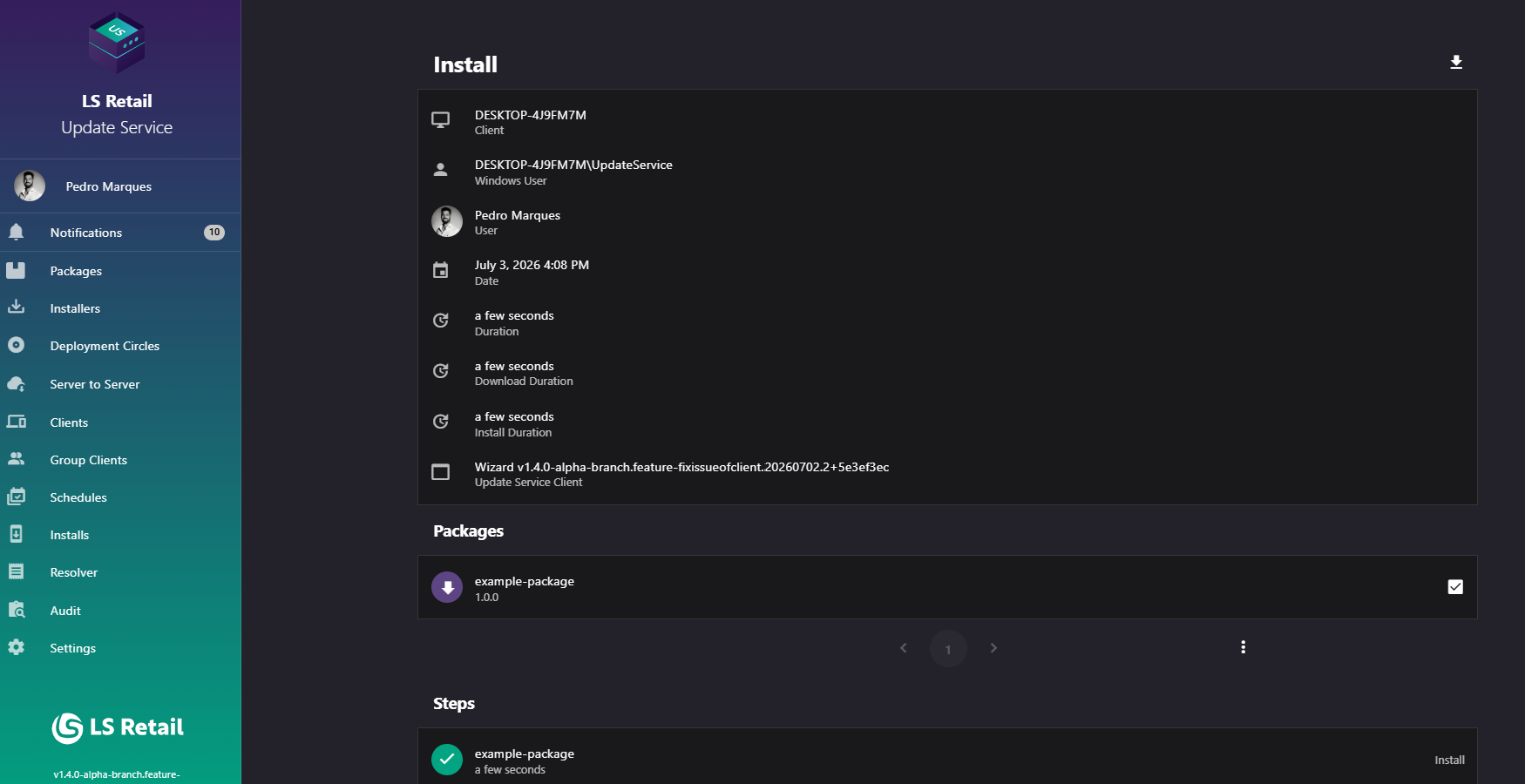
Figure: Interface overview of the Install Detail screen.
Key tasks
- Review the client and user associated with the install.
- Review status, timing, Update Service component, and package changes.
- Review completed operation steps and their logs.
- Export telemetry as JSON after the install completes, using Export install telemetry () at the top-right of the page.
Interface elements
| Element / Field Name | Type | Description & Triggered Action |
|---|---|---|
| Export install telemetry | Button | Downloads install telemetry as a JSON file after the install completes. |
| In-progress indicator | Icon (progress spinner) | Shown in the title bar while the install is still running; the page updates live as new data arrives. |
| Client | Field (read-only display, link) | The client the install ran on; clicking navigates to that client's Client Detail page. |
| Windows User | Field (read-only display) | The Windows user account under which the install was executed. |
| User | Field (read-only display, link) | The authenticated user associated with the install, shown with their profile picture and display name when user authentication is enabled. Clicking navigates to the Installs list filtered to that user. |
| Date | Field (read-only display) | The completion date and time of the install, or "In progress..." if it has not finished. |
| Duration | Field (read-only display) | Total time the install took, or a live elapsed-time counter if still running. |
| Download Duration | Field (read-only display) | Time spent downloading packages, shown once the install has completed. |
| Install Duration | Field (read-only display) | Time spent applying the installation, shown once the install has completed. |
| Update Service Client | Field (read-only display) | The Update Service component that performed the install (service, command-line tool, or wizard) and its version. |
Packages
| Element / Field Name | Type | Description & Triggered Action |
|---|---|---|
| Package list item | Grid/List Row | Each row shows the package ID, the version change (previous version to new version, or a struck-through version if removed), an icon indicating whether the package was installed, updated, or removed, and a selected/dependency indicator (a checked box for an explicitly selected package, an empty box for one installed automatically as a dependency). Clicking the row opens that package version's detail page. |
Log dialog
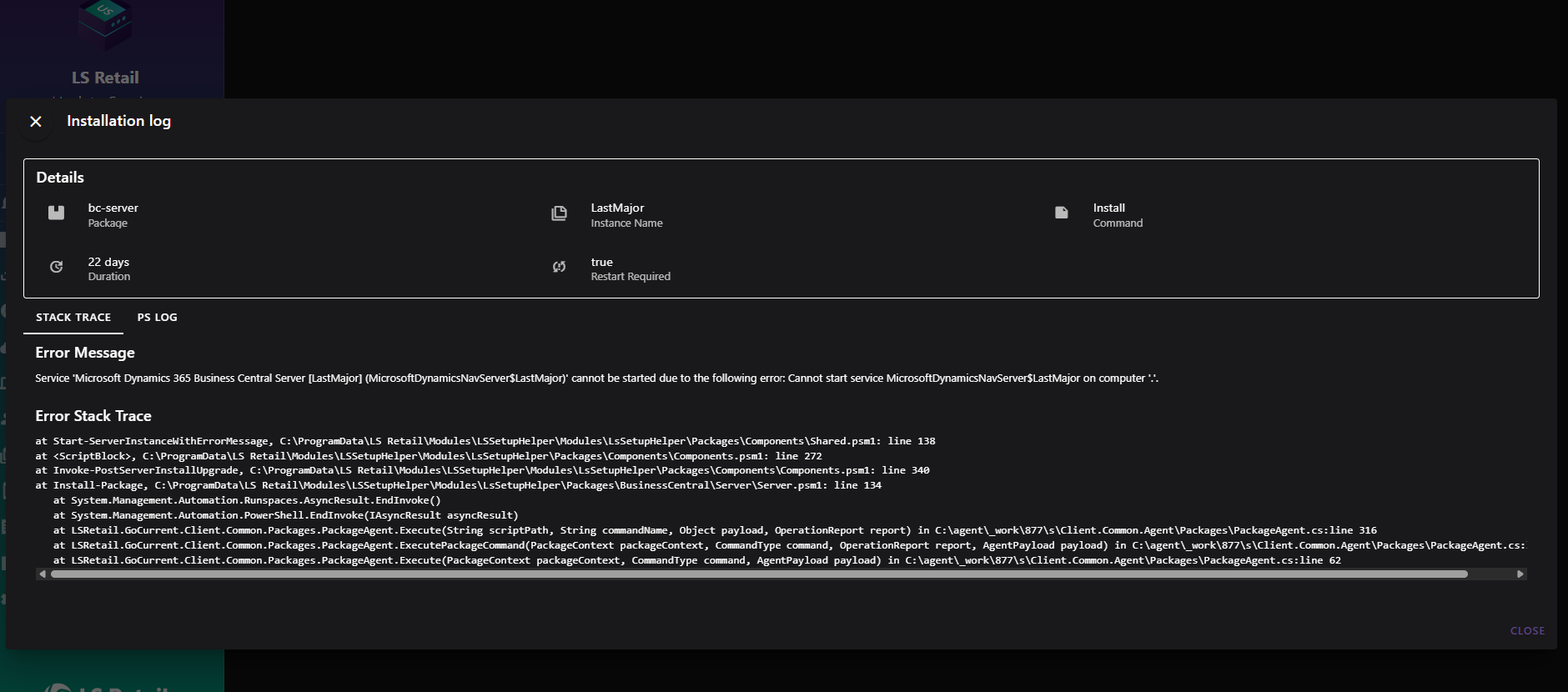
Figure: Interface overview of the Install Detail screen.
Select a step to view details captured for that package operation.
| Element / Field Name | Type | Description & Triggered Action |
|---|---|---|
| Package / Instance Name / Command | Field (read-only display) | Identifies which package the step relates to, its instance name (if any), and the command performed (Install, Update, or Remove). |
| Duration | Field (read-only display) | How long the step took to run. |
| Restart Required | Field (read-only display) | Indicates whether a system restart was required after this step. |
| Stack Trace tab | Tab | Shown only when the step failed; displays the error message and the full error stack trace. |
| PS Log tab | Tab | Shown when a PowerShell log was captured for the step; displays the raw log text. |
| Event Log tab | Tab | Shown when Windows event log entries were captured for the step; displays them as a searchable, expandable list. |
| Search (Event Log tab) | Field | Filters the event log entries shown, matching against their content. |
| Copy | Button | Copies the selected event log entry's raw text to the clipboard. |
| Close | Button | Closes the dialog. |