Package Version
Overview
Use the Package Version screen to inspect one package version, review its files, dependencies, and parameters, or remove it. Select a version from Package Versions to open this page.
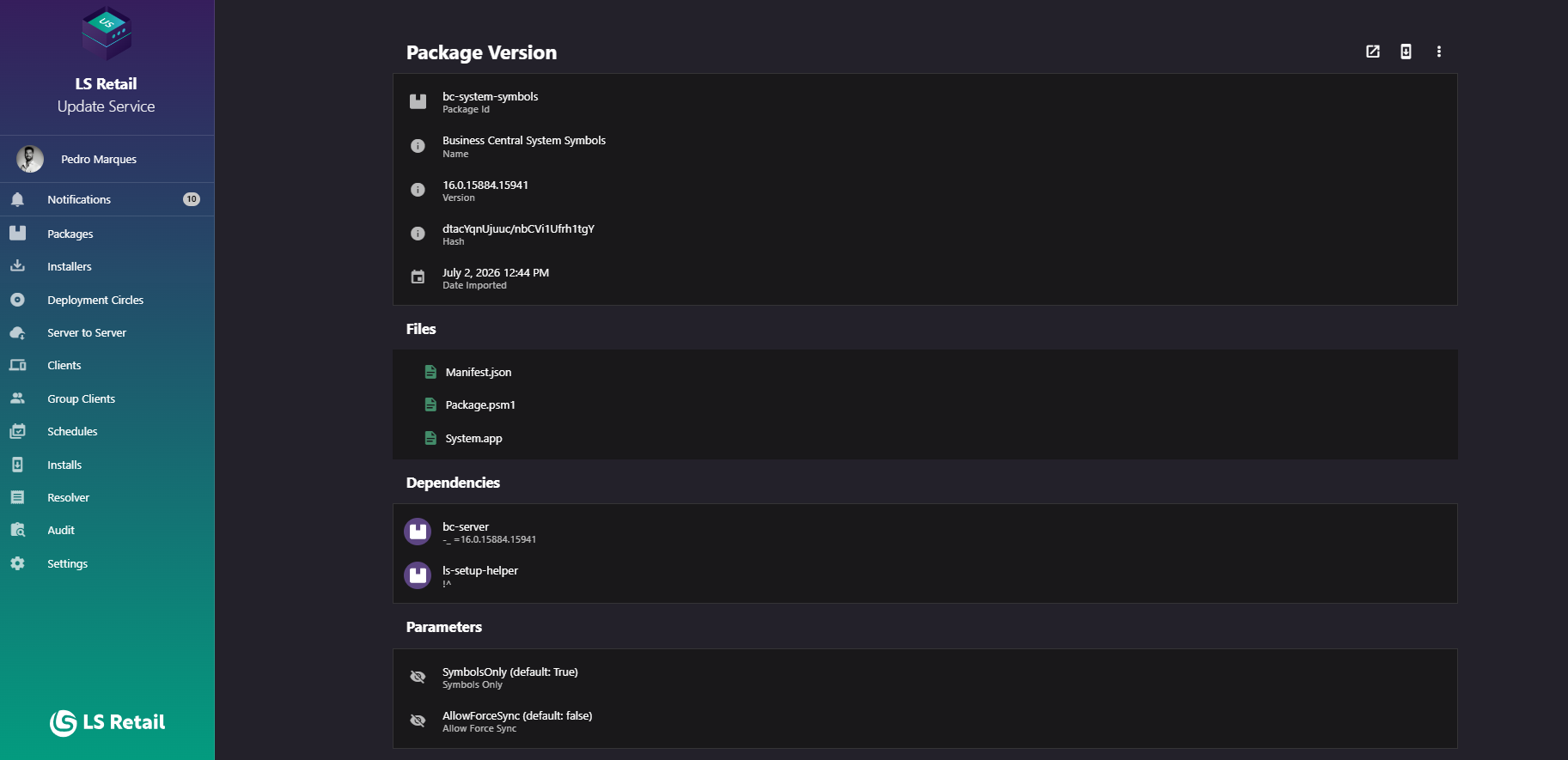
Figure: Interface overview of the Package Version screen.
Key tasks
- Review package metadata and the installs for this version.
- Use Open Wizard to install or roll back to this specific version.
- Browse, view, or download package files.
- Review dependencies and parameters.
- Remove the version after confirmation.
Interface elements
| Element / Field Name | Type | Description & Triggered Action |
|---|---|---|
| Open Wizard | Button | Launches the installer wizard for this version. To install the latest version, use Open Wizard on Package Versions. |
| View Installs | Button | Navigates to the Installs screen, filtered to this package version. |
| Overflow menu (⋮) | Button / Menu | Opens a menu with additional actions for this version. |
| Remove | Menu Item | Opens the Remove Package Version confirmation dialog to delete this version from the server. |
| Package Id | Field / Display | Shows the package identifier, with a copy-to-clipboard action. |
| Name | Field / Display | Shows the package's display name. |
| Version | Field / Display | Shows the version number of this package. |
| Description | Field / Display | Shows the version's description, if one was provided; hidden when there is none. |
| Hash | Field / Display | Shows the content hash of the package version. |
| Date Imported | Field / Display | Shows the date and time the version was imported into the server. |
Files

Figure: Interface overview of the files screen.
Lists the files contained in the package version as a navigable folder/file tree.
| Element / Field Name | Type | Description & Triggered Action |
|---|---|---|
| File/folder tree | Grid/Tree | Displays the package's contents as folders and files; folders can be expanded or collapsed, files can be selected to view details. |
| File name | Field / Display | Shown in the File Details panel when a file is selected. |
| Hash | Field / Display | Content hash of the selected file. |
| File Path | Field / Display | Full path of the selected file within the package. |
| Size | Field / Display | Human-readable size of the selected file. |
| Store | Field / Display | Indicates whether the file is flagged to be stored (Yes/No). |
| Prefetch | Field / Display | Indicates whether the file is flagged for prefetching (Yes/No). |
| View File | Button (icon) | Opens the selected file for viewing in a new browser tab. |
| Download File | Button (icon) | Downloads the selected file. |
Dependencies
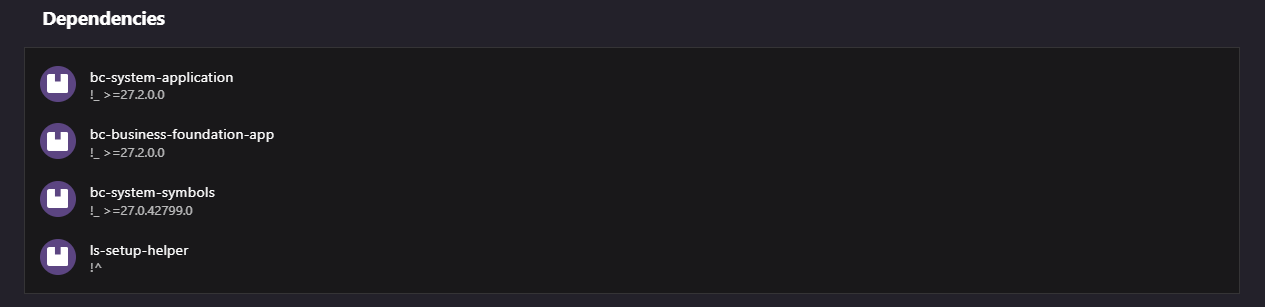
Figure: Interface overview of the dependencies screen.
Lists the other packages that this package version depends on.
| Element / Field Name | Type | Description & Triggered Action |
|---|---|---|
| Dependency list item | Grid/List Row | Shows the dependent package's ID and its required version range/query; clicking navigates to that package's Package Versions screen. |
| No dependencies message | Display | Shown in place of the list when the version has no dependencies. |
Parameters

Figure: Interface overview of the parameters screen.
Lists the configurable parameters defined for this package version.
| Element / Field Name | Type | Description & Triggered Action |
|---|---|---|
| Parameter list item | Grid/List Row | Each row shows the parameter key (and its default value, if any) and its description, with a "Required" badge when the parameter is required and a hidden icon when it is hidden. Clicking the row opens the Parameter Details dialog. |
| No parameters message | Display | Shown in place of the list when the version has no parameters. |
Parameter details dialog
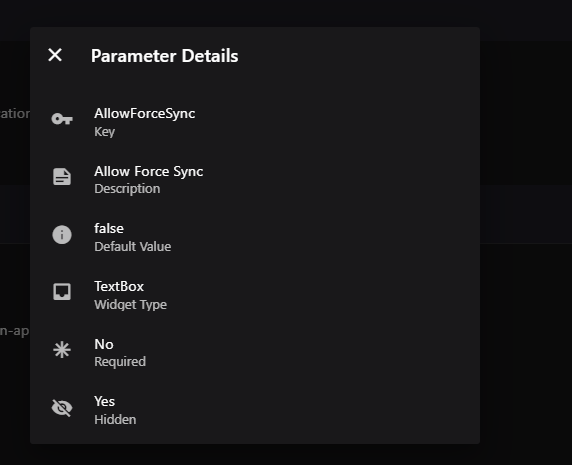
Figure: Interface overview of the parameters detail screen.
| Element / Field Name | Type | Description & Triggered Action |
|---|---|---|
| Key | Field / Display | The parameter's key/name. |
| Description | Field / Display | Explains the purpose of the parameter. |
| Default Value | Field / Display | The parameter's default value, or "None" if not set. |
| Widget Type | Field / Display | The type of input widget associated with the parameter. |
| Required | Field / Display | Indicates whether a value must be supplied for this parameter (Yes/No). |
| Hidden | Field / Display | Indicates whether the parameter is hidden from end users (Yes/No). |
| Labels | Field / Display | Shown when the parameter defines a set of labels for its allowed values. |
| Values | Field / Display | Shown when the parameter defines a set of allowed values. |
Note
Some install-instruction workflows also support parameters with manually overridden values (shown with an Update and Return to default action). This variant is used when configuring an individual installation step rather than when browsing the package catalog.
Remove Package Version
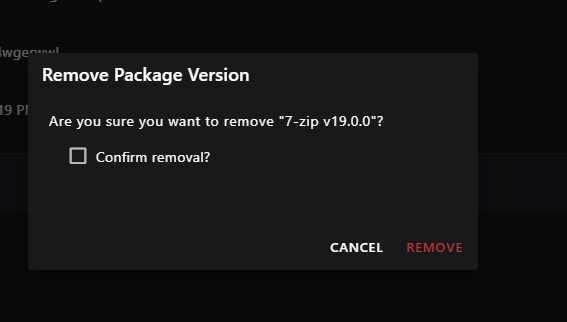
Figure: Interface overview of the deletion of a Version screen.
Use this dialog to permanently remove the package version from the server.
| Element / Field Name | Type | Description & Triggered Action |
|---|---|---|
| Confirm removal? | Toggle (checkbox) | Must be checked before the Remove action can be submitted, to prevent accidental deletions. |
| Cancel | Button | Closes the dialog without making changes. |
| Remove | Button | Permanently deletes the package version from the server and returns the user to the Package Versions screen for the package (or to the Packages screen if no versions remain). |