Package Versions
Overview
Use the Package Versions screen to review and filter versions of an imported package. Select a package from Packages, then open a version for details or launch the installer wizard.
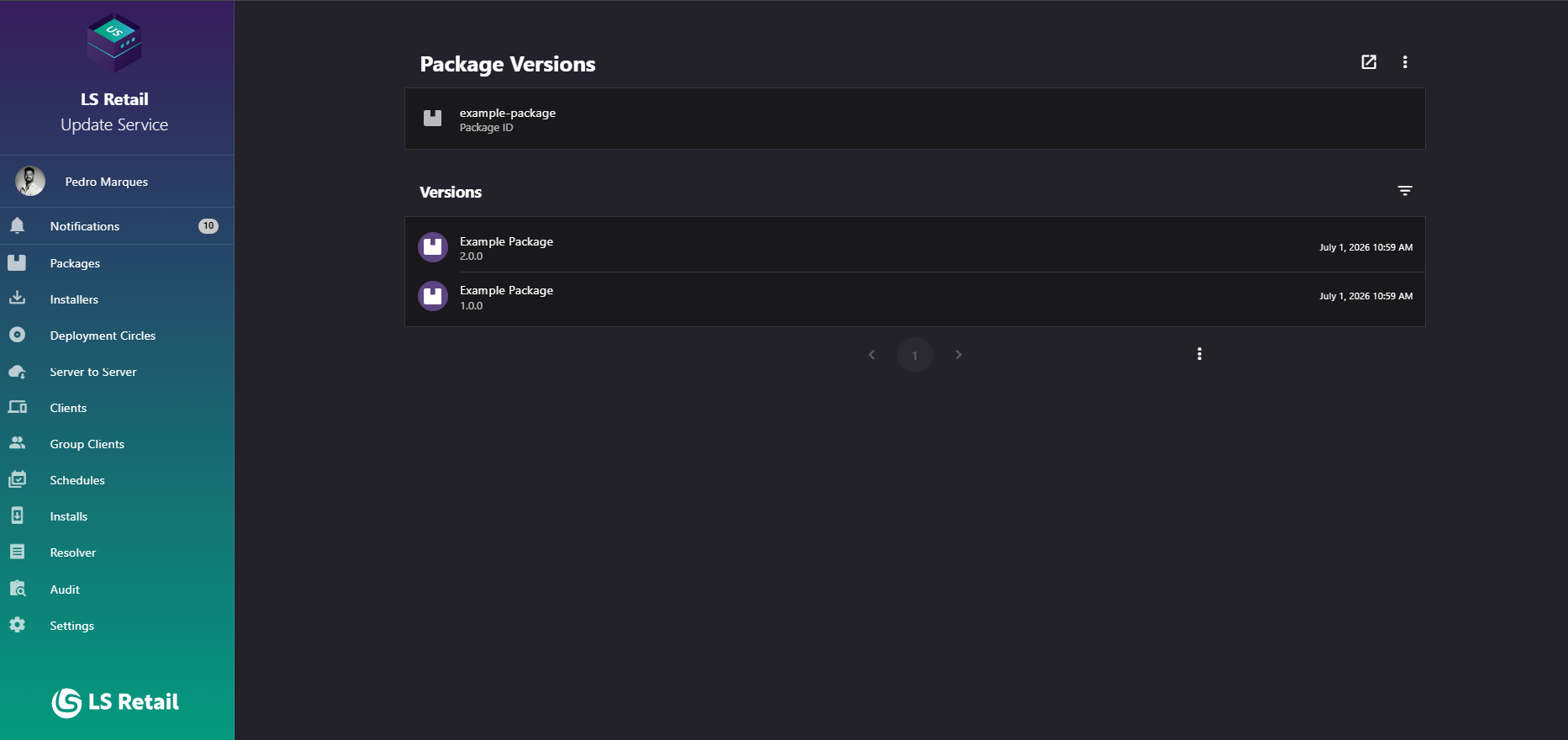
Figure: Interface overview of the Package Versions screen.
Key tasks
- Copy the package ID and browse versions, newest first.
- Review each version’s import date and instance status.
- Filter pre-release versions or use a version range query.
- Open a version for details.
- Use Open Wizard to install the latest version; open a specific version to target it instead.
- Open the package’s filtered install list from the overflow menu.
Interface elements
| Element / Field Name | Type | Description & Triggered Action |
|---|---|---|
| Package ID (with copy icon) | Field / Display | Shows the identifier of the selected package; click the copy icon to copy it to the clipboard. |
| Open Wizard | Button | Launches the installer wizard for the latest version. Open a specific version to target that version instead. |
| Overflow menu (⋮) | Button / Menu | Opens a menu with additional actions. |
| View Installs | Menu Item | Navigates to the Installs screen, pre-filtered to show installs for this package. |
| Show Filters | Button | Shows or hides the Filters panel below the Versions header (see Filters below). |
| Version list item | Grid/List Row | Each row shows the version's name, version number, and import date/time, with an "Is instance" icon when the version is flagged as an instance. Clicking the row opens its Package Version screen. |
Filters
Use Show Filters to narrow the version list.
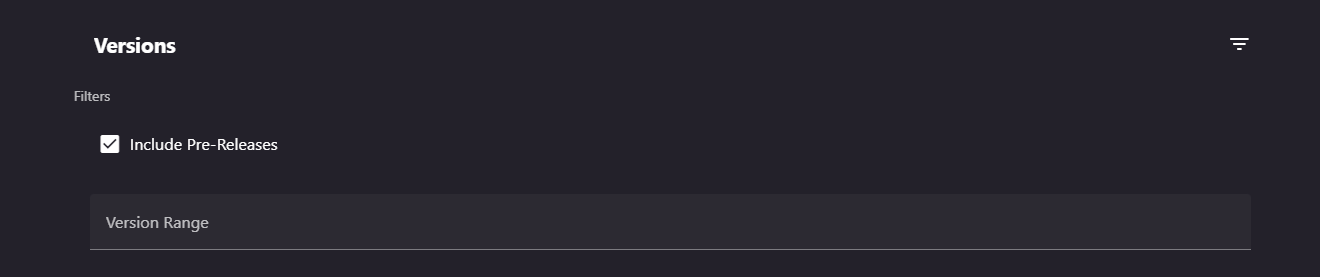
Figure: The Filters panel on the Package Versions screen.
| Element / Field Name | Type | Description & Triggered Action |
|---|---|---|
| Include Pre-Releases | Toggle (checkbox) | When enabled (default), pre-release versions appear in the list; when disabled, only stable/release versions are shown. |
| Version Range | Field | Filters the list to versions matching a specific version range query. |