Resolver
Overview
Preview package dependency resolution before you install packages on a client. Add packages and optional version queries to see the resolved package set and dependencies.
Use Upgrade Mode to compare an installed package set with a target set. You can open the resolved set in the installer or use Advanced Resolver to customize an installation and export a PowerShell script.
Key tasks
- Add packages and version queries to resolve package dependencies.
- Turn on Upgrade Mode to compare a source package set with a target set.
- Clear the current package selections and results.
- Open a resolved package to view its Package Version details.
- Open the Installer Wizard or Advanced Resolver for the resolved package set.
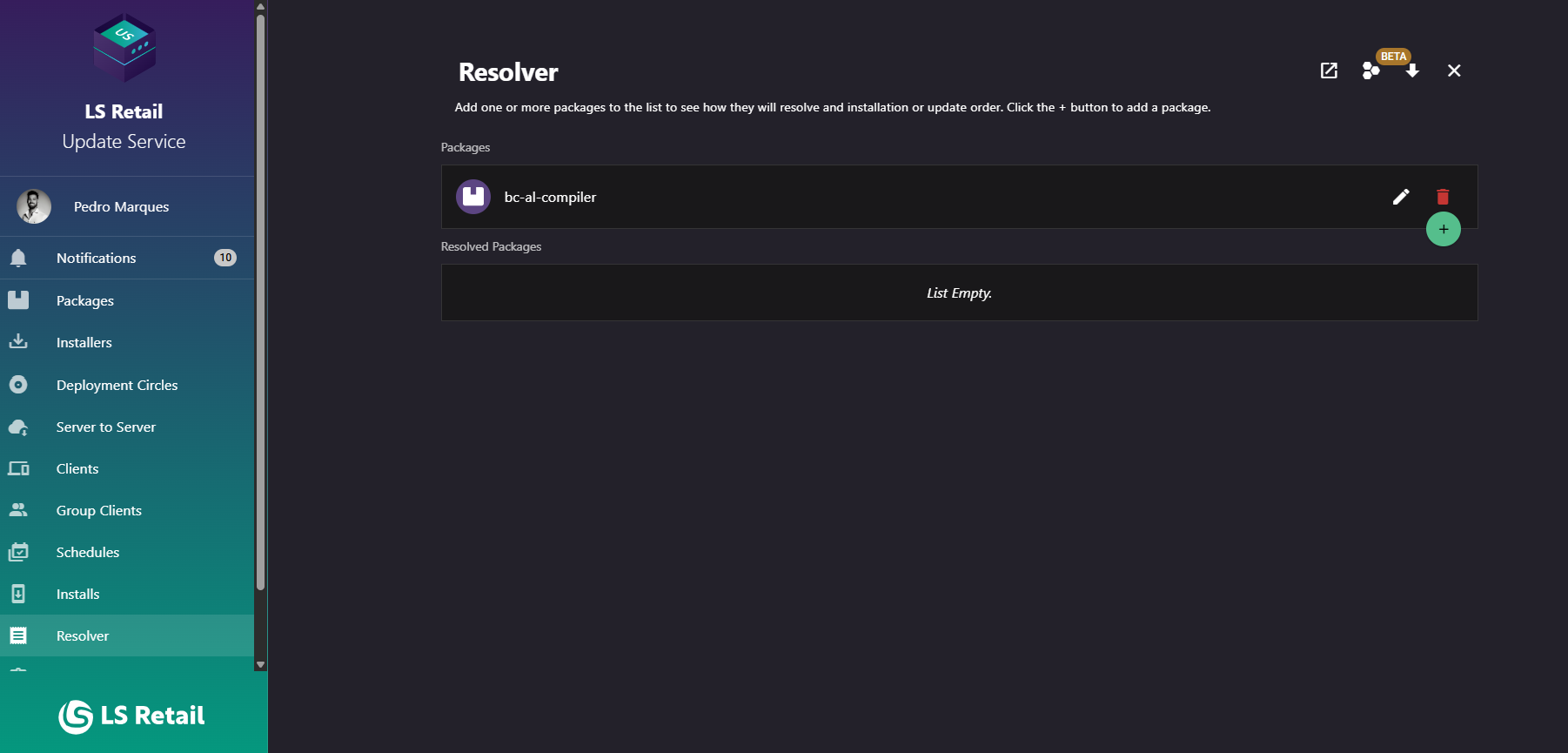
Figure: Resolver screen.
UI reference
| Element / Field Name | Type | Description & Triggered Action |
|---|---|---|
| Open Wizard | Button | Launches the Update Service client installer with the currently resolved package set, using the updateservice:// protocol handler. Only active when there are resolved results. |
| Advanced Resolver | Button | Opens the Advanced Resolver dialog (Bundle Editor), pre-filled with the current "Packages" list, to build and save an install bundle. |
| Toggle Upgrade Mode | Button | Switches Upgrade Mode on or off. When turning it on, the current "Packages" list is copied into "Packages From" as the starting point. When turning it off, the "Packages From" list is cleared. |
| Clear All | Button | Clears all packages from both "Packages From" (if in Upgrade Mode) and "Packages", and resets the resolved results. |
| Packages From | Field List | Only visible in Upgrade Mode. The set of packages/versions representing what is currently installed on the (simulated) client, used as the starting point of the resolution. |
| Packages / Packages To | Field List | The set of packages (and optional version queries) to resolve. In Upgrade Mode, this represents the target set to upgrade to. |
| Resolved Packages | Grid/List | Displays the outcome of the resolution: each entry shows the package ID and the resolved version. In Upgrade Mode, it also shows the previous version with an arrow to the new version, or a strikethrough if the package is being removed. An icon indicates whether an entry represents an installed instance. Clicking an entry navigates to its Package Version page. |
Resolved packages
The list shows each resolved package ID and version. In Upgrade Mode, it also shows the prior version or indicates a package that will be removed. Select a row to open the package version details, when links are enabled.
Advanced resolver
Use Advanced Resolver to define a package list, installation arguments, and an instance name. The dialog opens with the packages in Packages. Closing it with a package list prompts you to confirm because its configuration is not retained.
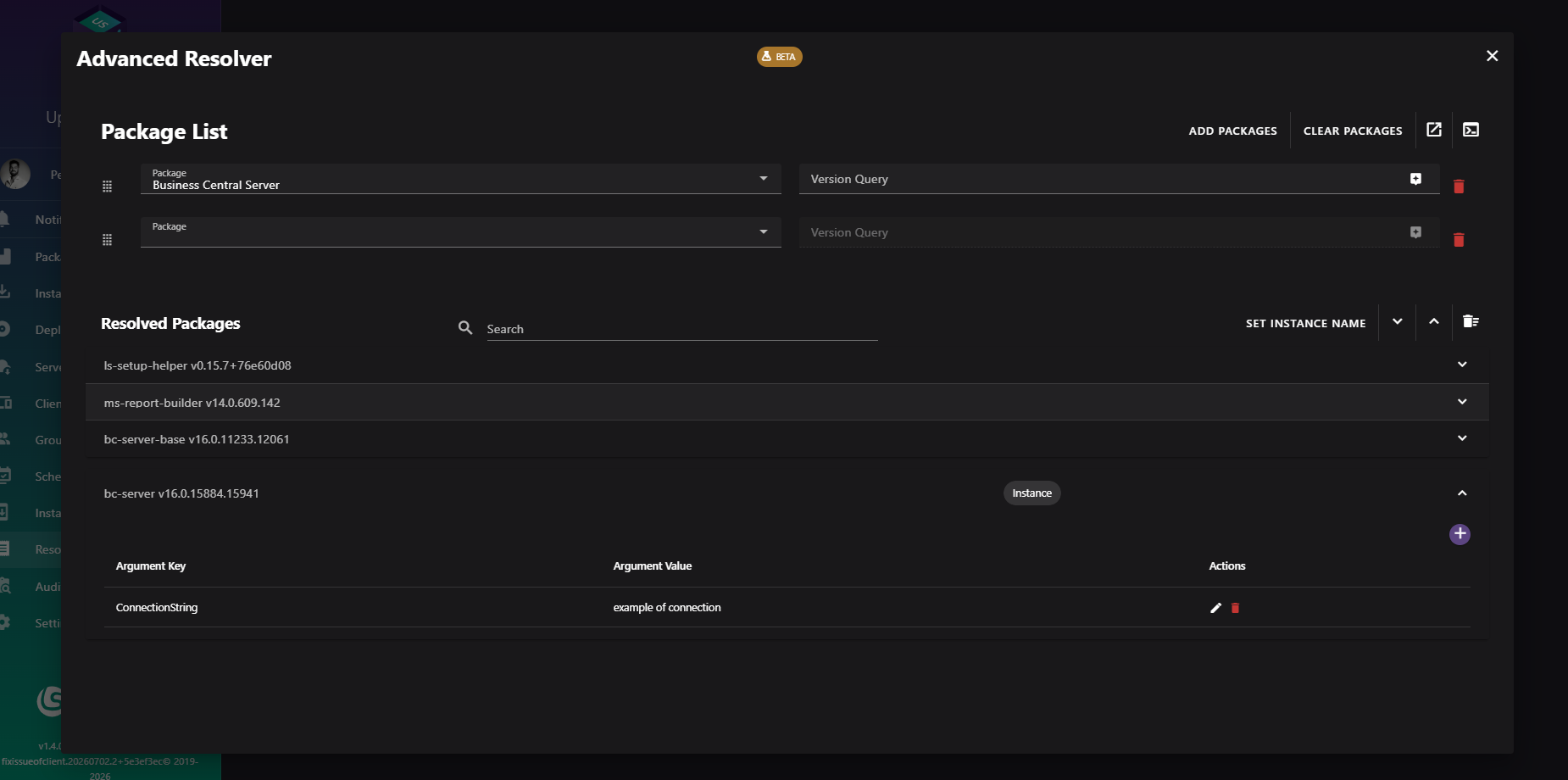
Figure: Advanced Resolver.
The dialog includes a package list, resolved-package arguments, and actions to open the configuration in a client or export it as PowerShell.
Package list
- Add one or more packages to the list, each with its own Package selector and Version Query; a new blank row is added automatically as soon as the last row is given a package.
- Reorder packages by dragging rows using the drag handle.
- Remove a package from the list (at least one row is always kept).
- Use Clear Packages to reset the list back to a single empty row.
Resolved packages and arguments
The dialog resolves dependencies as the package list changes and displays each resolved package in an expandable panel.
- Set an Instance Name for the overall install using the Set instance name button.
- Expand or collapse all resolved packages at once using the expand/collapse-all buttons.
- Clear every custom argument that has been set across all packages using Clear arguments.
- Expand a resolved package to add, edit, or delete its install Arguments (key/value pairs passed to that specific package at install time) using the Add arguments action and the arguments table's edit/delete row actions.
- Search/filter the resolved package list by package ID or display name.
Open in client
Use the Open in client button () to start the configured package list, version queries, arguments, and instance name on a client. If the Update Service client is not detected, the app prompts you to install it. The button is unavailable until you add a package.
PowerShell export
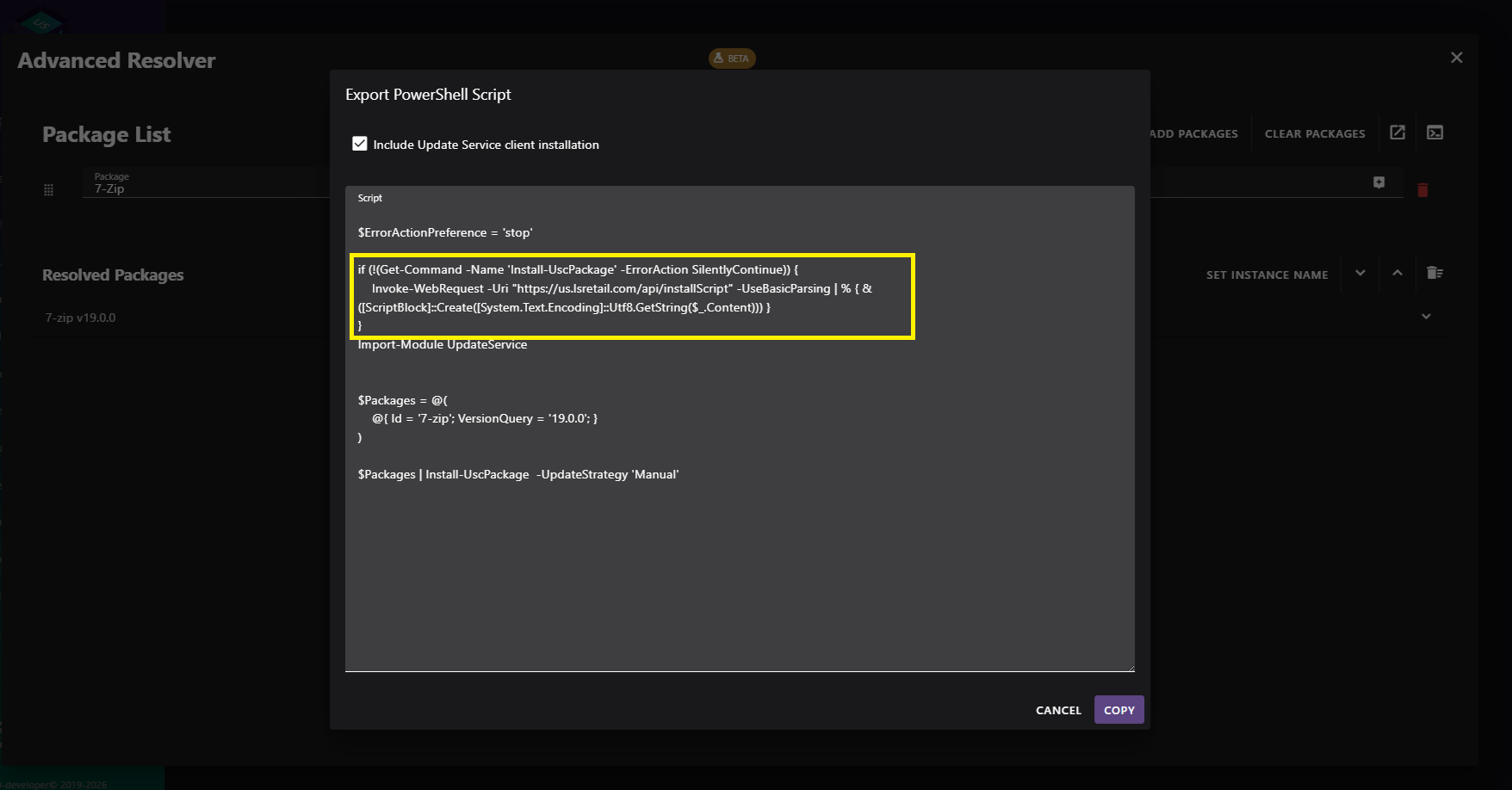
Figure: Export PowerShell Script dialog.
Use the Powershell Export button () to open the Export PowerShell Script dialog. It generates a PowerShell script from the current package list, arguments, and instance name.
- Enable Include Update Service client installation if the target machine might not have the Update Service client installed yet. When enabled, the script installs the Update Service client first, then the packages.
- The generated script is shown read-only in a text area and can be copied to the clipboard with the Copy action, ready to be pasted into PowerShell, saved as a
.ps1file, or distributed for unattended installs. - The script encodes the same packages, version queries, per-package arguments, and instance name that were configured in the Package list and Resolved packages and arguments sections above.
| Element / Field Name | Type | Description & Triggered Action |
|---|---|---|
| Add packages | Button | Adds a new empty package row to the list. |
| Clear Packages | Button | Resets the package list back to a single empty row. |
| Package | Field (selector) | Selects which package to include. Required per row. |
| Version Query | Field | Specifies which version(s) of the package to target; supports variables. |
| Drag handle | Draggable Row | Reorders package rows via drag-and-drop. |
| Delete (package row) | Button | Removes a package row from the list. |
| Set instance name | Button | Opens a small dialog to set the instance name suggestion used for the install. |
| Expand all / Collapse all | Button (icon) | Expands or collapses every resolved package panel at once. |
| Clear arguments | Button (icon) | Removes all custom arguments set on every resolved package. |
| Add arguments | Button | Opens the Arguments dialog to add a new key/value argument to the selected resolved package. |
| Argument row edit/delete | Button | Edits or deletes an existing argument on a resolved package. |
| Open in client | Button | Launches the Update Service client with the fully customized package list, arguments, and instance name. Disabled until a package has been specified. |
| Powershell Export | Button | Opens the Export PowerShell Script dialog. |
| Include Update Service client installation | Toggle (checkbox) | When enabled, the exported script also installs the Update Service client itself if it is not already present on the target machine. |
| Script | Field (read-only text area) | Shows the generated PowerShell script, reflecting the current package list, arguments, and instance name. |
| Copy | Button | Copies the generated script to the clipboard and closes the dialog. |