Server to Server Detail
Overview
Review and manage a remote Update Service server connection. Download selected packages from the remote server into the local server.
Key tasks
- Review the remote server name, URL, and unique identifier.
- Edit or remove the connection.
- Select packages and version queries to download from the remote catalog.
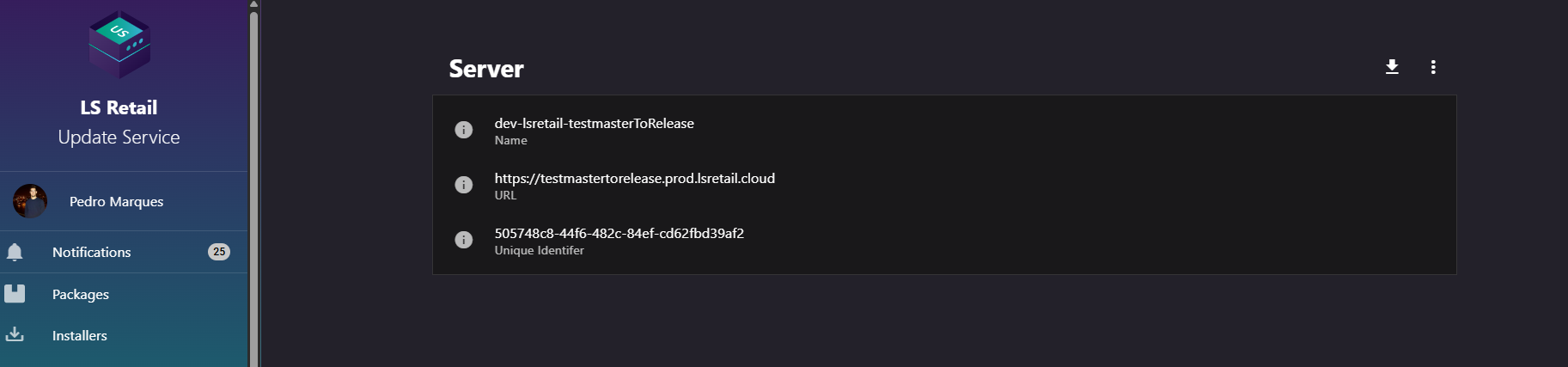
Figure: Server to Server Detail screen.
UI reference
| Element / Field Name | Type | Description & Triggered Action |
|---|---|---|
| Get Packages from server | Button | Opens the Get Packages dialog to select and download packages from the remote server. |
| Options menu (⋮) | Button | Opens a menu with Edit and Remove actions for this server connection. |
| Edit | Menu Item | Opens the Add/Edit Server Connection dialog (see Server to Server) pre-filled with this connection's details, so the URL, username, or token can be updated. |
| Remove | Menu Item | Prompts for confirmation, then deletes this server connection and returns to the Server to Server list. |
| Name | Field (read-only) | The display name of the remote server connection, if one was set. |
| URL | Field (read-only) | The address of the remote server this connection points to. |
| Unique Identifier | Field (read-only) | The internal unique identifier (GUID) assigned to this server connection. |
Get packages
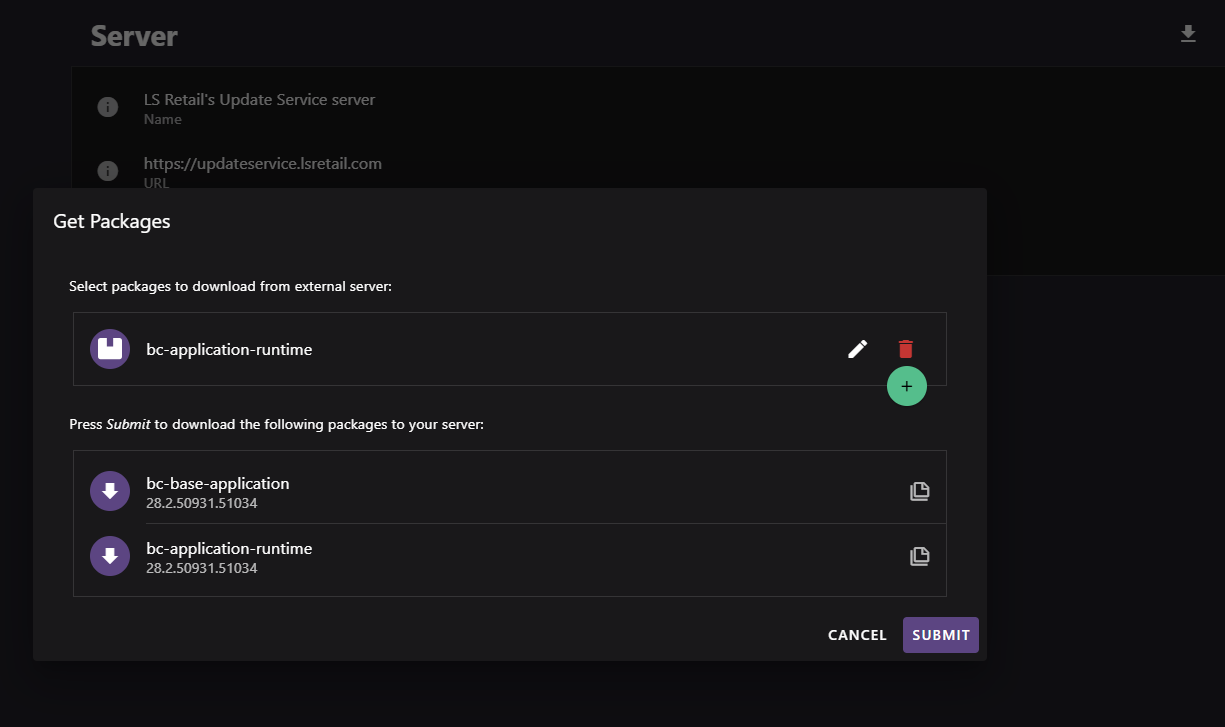
Figure: Interface overview of the Server to Server Get packages screen.
Use this dialog to select packages from the remote catalog. Before download, it shows the packages and dependencies that resolve from your selections.
- Add one or more packages to the request list by selecting a package and specifying a version query (the version or version range to retrieve), using the package selector.
- Edit or remove a package already added to the list, and reorder the list by dragging entries.
- The preview updates when the package list changes and includes resolved dependencies.
- Review the resolved preview list before confirming the download.
- Press Submit to start downloading the selected (and resolved) packages from the remote server into the local server; on success, the dialog closes and you are returned to the Server to Server list.
- Cancel the dialog at any time without starting a download.
| Element / Field Name | Type | Description & Triggered Action |
|---|---|---|
| Package list | Grid/List | The list of packages (with package ID and version query) selected to be requested from the remote server. Supports adding, editing, removing, and reordering entries via drag-and-drop. |
| Add (+) | Button | Opens a form to select a package and specify a version query to add to the package list. |
| Package | Field | Selects the package (by ID) to request from the remote server. Required. |
| Version Query | Field | Specifies which version or version range of the selected package to request. Supports variables. |
| Edit | Button | Edits an existing entry in the package list. |
| Remove | Button | Removes an entry from the package list. |
| Resolved packages preview | Grid/List | Read-only preview showing the full set of packages (including resolved dependencies) that will be downloaded from the remote server based on the current package list. |
| Cancel | Button | Closes the dialog without downloading any packages. |
| Submit | Button | Starts downloading the selected and resolved packages from the remote server to the local server. |