Group Detail
Overview
Use the Group Detail screen to manage a group’s name, description, schedule, and client membership.
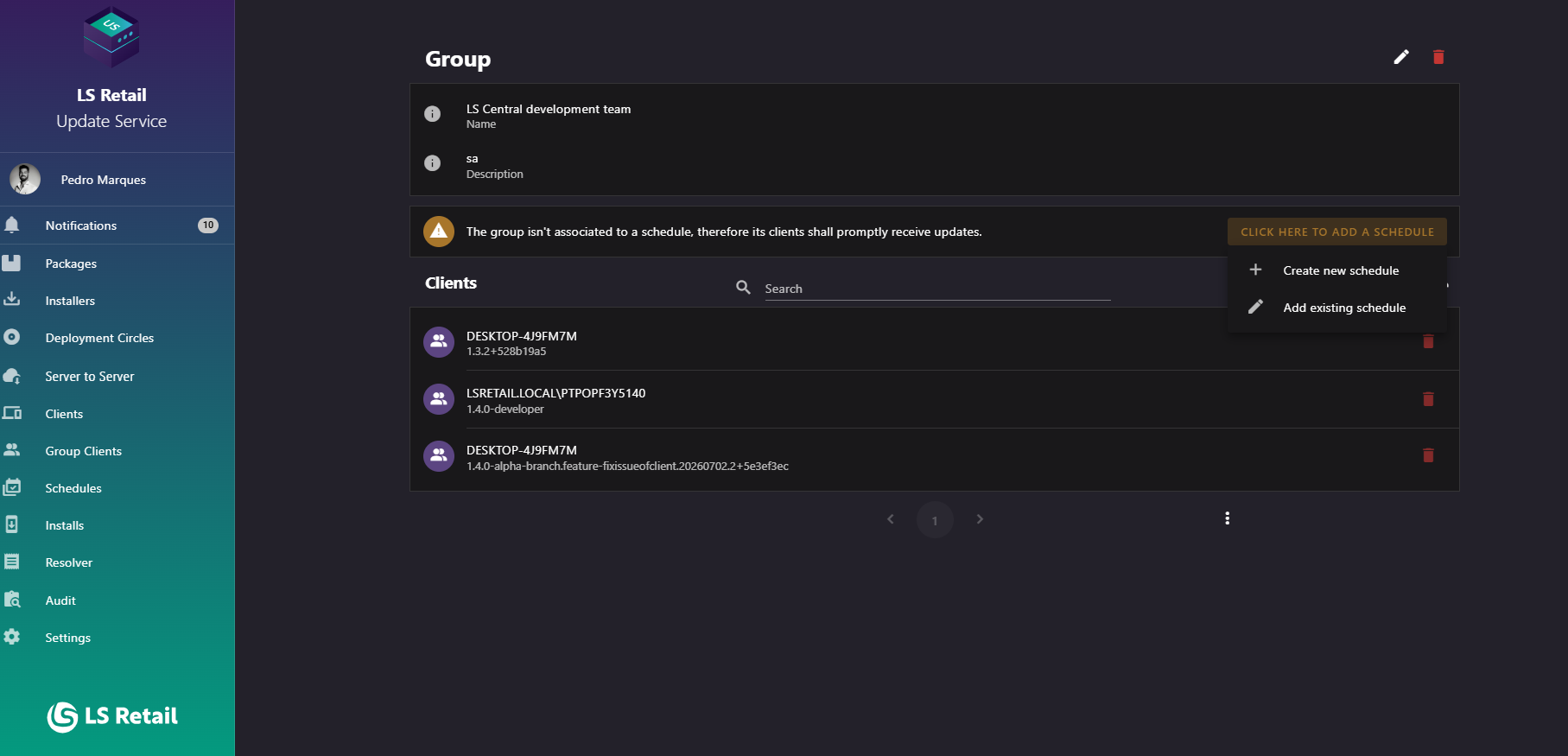
Figure: Interface overview of the Group Detail screen.
Key tasks
- View the group's name and description.
- Edit the group name, description, and schedule.
- Delete the group. The confirmation dialog lists deployment circles that reference it.
- Review schedule status and active days. A group with no active days cannot update; a group without a schedule can update at any time.
- Open or remove the associated schedule without deleting the schedule.
- Search, add, and remove group members.
Interface elements
| Element / Field Name | Type | Description & Triggered Action |
|---|---|---|
| Edit | Button | Opens the Create/Edit Group dialog (see Group Clients) pre-filled with this group's details. |
| Delete | Button | Prompts for confirmation, listing any deployment circles that reference this group, then deletes the group and returns to the Group Clients list. |
| Name | Field (read-only) | The display name of the group. |
| Description | Field (read-only) | The description of the group. |
| "No active days" warning | Feedback Message | Shown when the group's schedule exists but has no active weekdays configured on any of its time windows, meaning clients on this group won't be able to update. |
| "No schedule" warning | Feedback Message | Shown when the group has no schedule associated, meaning its clients can receive updates immediately. Includes a menu to create a new schedule or add an existing one. |
| Create new schedule | Menu Item | Opens the Create/Edit Schedule dialog to create a new schedule and associate it with this group. |
| Add existing schedule | Menu Item | Opens the Create/Edit Schedule dialog to select an existing schedule to associate with this group. |
| Schedule options menu (⋮) | Button | Opens a menu with Edit and Remove actions for the associated schedule. Only shown when a schedule is associated. |
| Edit (schedule menu item) | Menu Item | Navigates to the Schedule Detail screen for the associated schedule. |
| Remove (schedule menu item) | Menu Item | Prompts for confirmation, then removes the schedule association from this group (the schedule itself is not deleted). |
| Schedule Name | Field (read-only) | The name of the schedule associated with this group. |
| Schedule Description | Field (read-only) | The description of the schedule associated with this group. |
| Schedule Status | Toggle/Chip (read-only) | Shows "Status: Active" or "Status: Inactive" depending on whether the associated schedule is active. |
| Active days | Chip Group (read-only) | Shows the combined set of weekdays (Sunday through Saturday) on which at least one of the schedule's time windows is active. Shows "No active days" if none are active. |
Clients in this group
Lists group members and lets you add or remove them.
- Browse all clients belonging to this group.
- Search for a client by name; results filter as you type.
- Open a client to view its details (navigates to the client's detail screen).
- Add one or more clients to the group using the Add clients to this group action, which opens the Select Clients dialog.
- Remove a client from the group directly from the list, after confirmation. This only removes the client from the group; it does not delete the client.
| Element / Field Name | Type | Description & Triggered Action |
|---|---|---|
| Search | Field | Free-text search box used to filter the group's client list by name. |
| Add clients to this group | Button | Opens the Select Clients dialog to add one or more clients to this group. |
| Client list item | Grid/List Row | Each row displays the client's name as the title and its version as the subtitle. Clicking a row navigates to that client's detail screen. |
| Delete (client row) | Button | Prompts for confirmation, then removes the client from this group. |
Select Clients
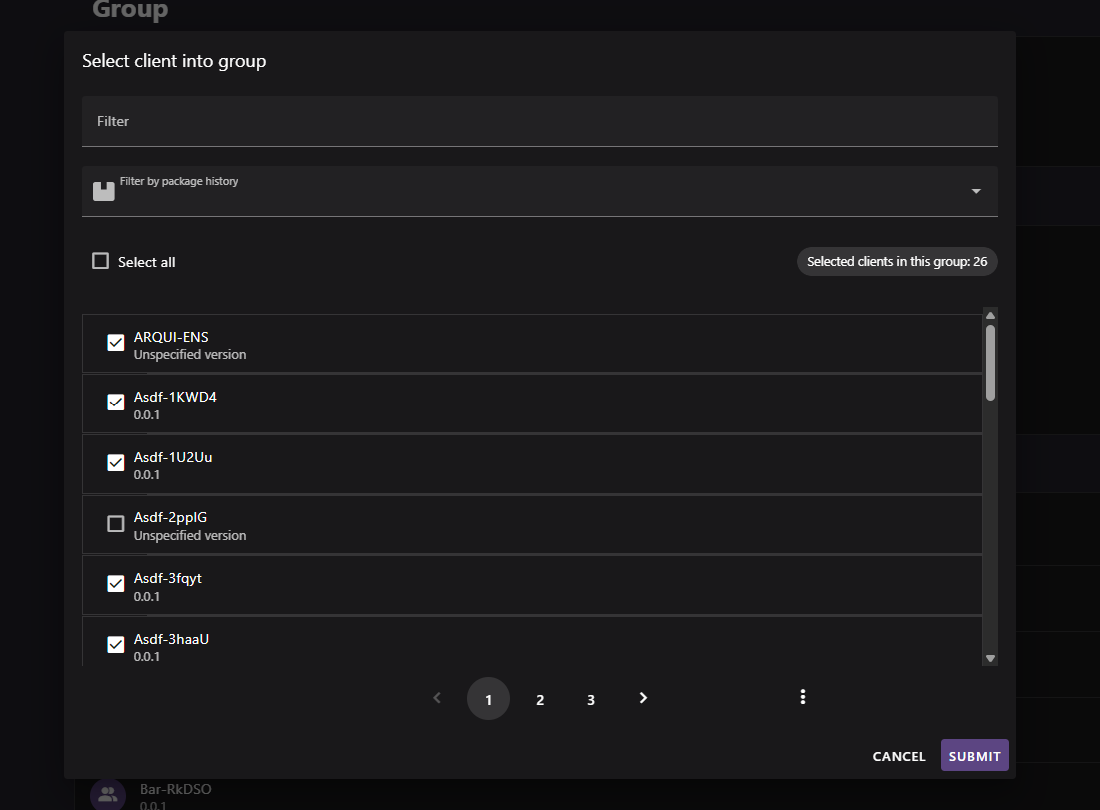
Figure: Interface overview of the select clients screen.
Use this dialog to search the client catalog and select group members.
- Filter available clients by host name or package history.
- Select individual clients or use Select all for the current filtered list.
- Submit to add the selected clients, or cancel without changing membership.
| Element / Field Name | Type | Description & Triggered Action |
|---|---|---|
| Filter | Field | Free-text filter matching the client's host name (or "Anonymous" if unset). |
| Filter by package history | Field | Filters the client list to only clients that have a specified package in their install history. |
| Select all | Toggle | Selects or deselects all clients currently shown in the filtered list. Displays a count of clients currently selected for the group. |
| Client list item | Grid/List Row | Each row shows the client's host name and version, with a checkbox to include or exclude it from the group. |
| Cancel | Button | Closes the dialog without changing the group's client membership. |
| Submit | Button | Adds the selected clients to the group and closes the dialog. |