Create and use personal access tokens (PATs)
Use a personal access token (PAT) to authenticate scripts, PowerShell cmdlets, and Server to Server connections without using an interactive password.
Before you begin
Sign in to the Server Management interface. See Access and permissions.
Create and revoke a PAT
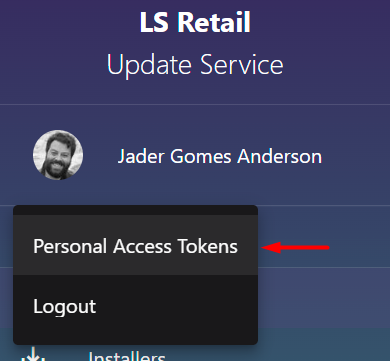
In the user profile menu, select Personal Tokens.
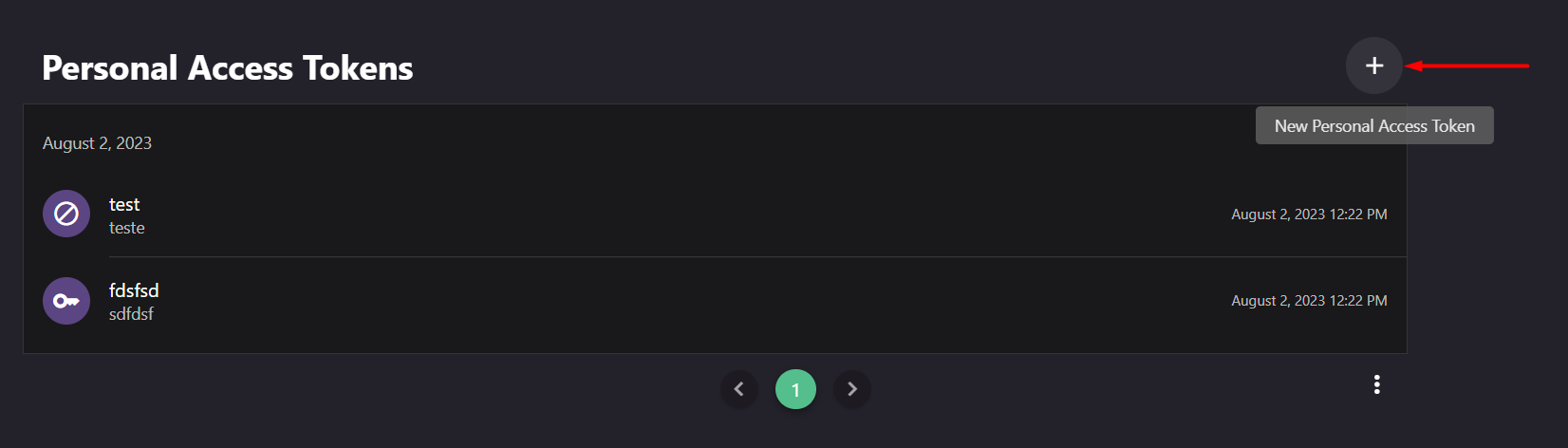
Review existing tokens and their Active, Revoked, or Expired status.
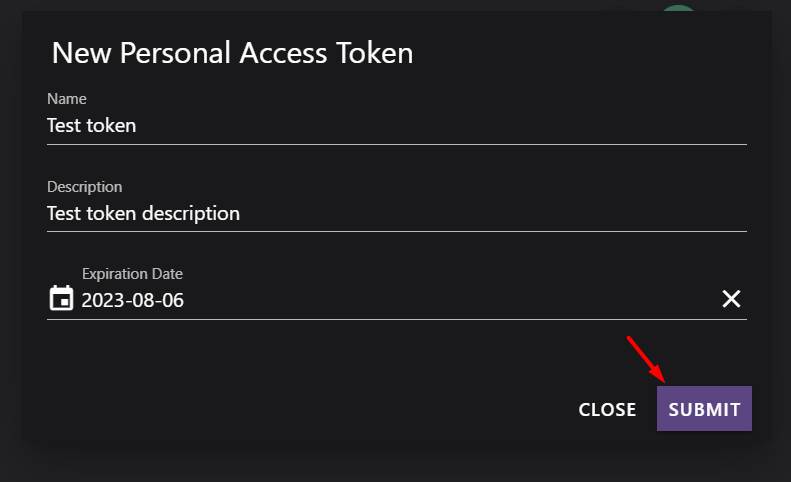
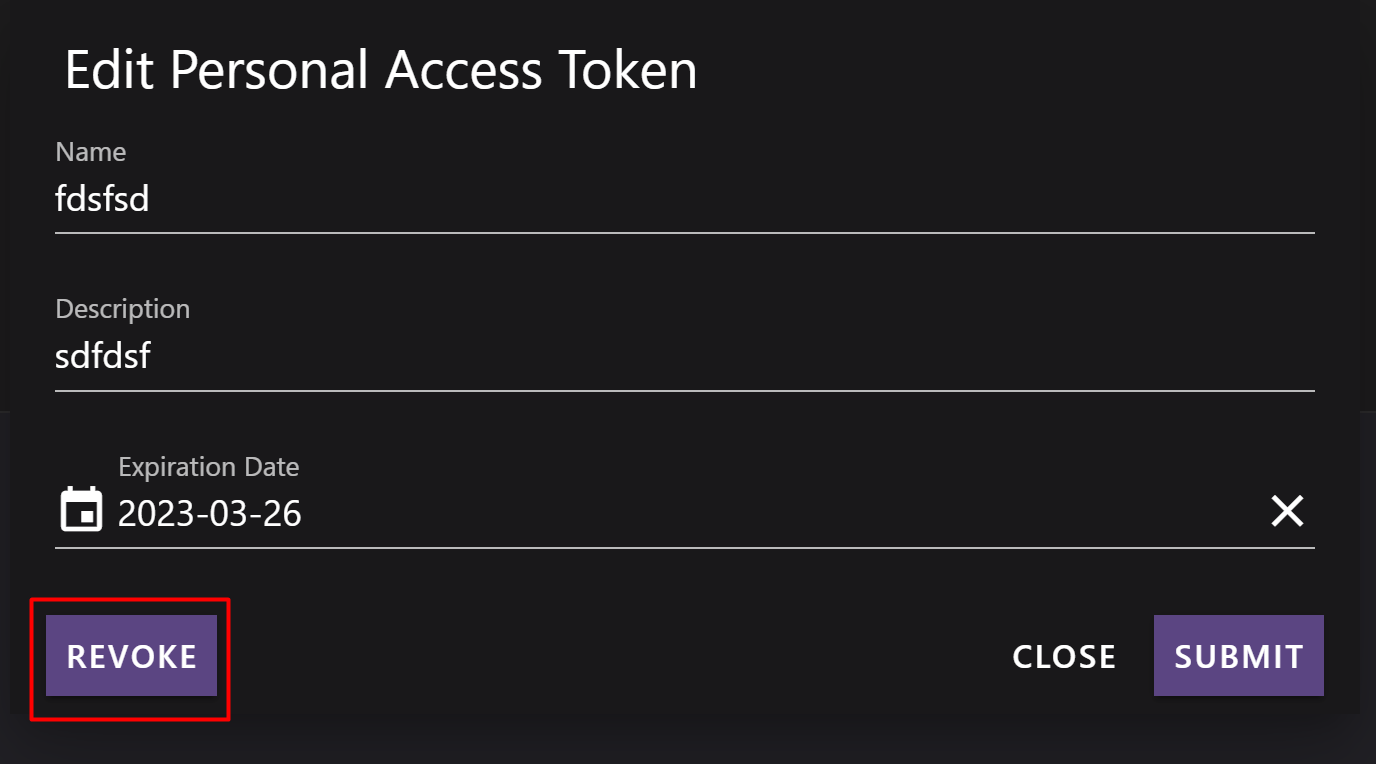
Enter a recognizable Name and Description, then submit.
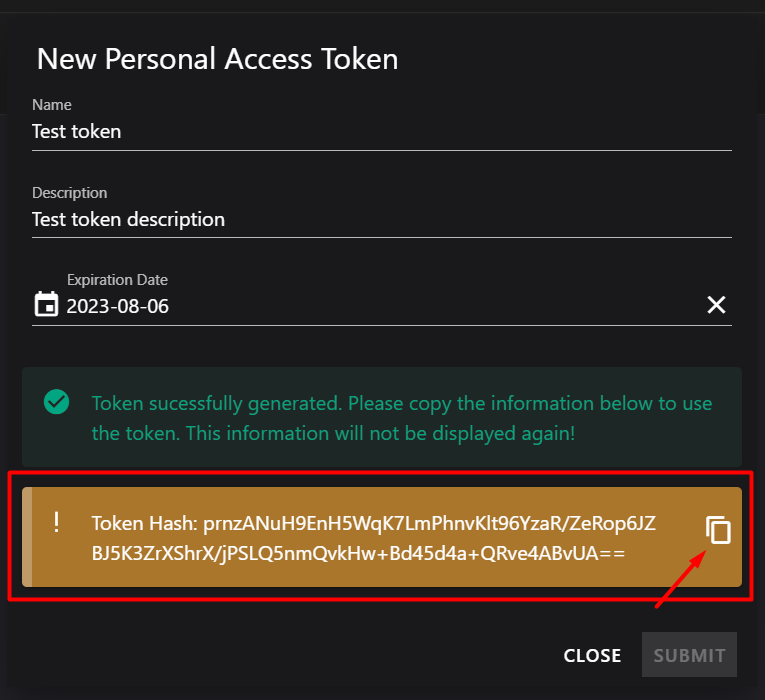
Copy the token value and store it in a secure secret store, such as a password manager. The value is displayed only when the token is created.
When the token is no longer required, select it and choose Revoke. Create a replacement token if the workload still needs access.
Use a PAT with the API
Exchange the PAT for a bearer token, then send the bearer token in the Authorization header.
POST https://your-server.com/api/v1/PersonalTokens/authenticate?username=your_username&personalToken=token_hash
URL-encode the username and PAT when you place them in the query string.
$username = "your_username@example.com"
$token = "token_hash"
$encodedUsername = [System.Web.HttpUtility]::UrlEncode($username)
$encodedToken = [System.Web.HttpUtility]::UrlEncode($token)
$url = "https://your-server.com/api/v1/PersonalTokens/authenticate?username=$encodedUsername&personalToken=$encodedToken"
$response = Invoke-RestMethod -Uri $url -Method Post
$bearerToken = $response.token
Use the returned token with the Bearer authorization scheme:
Authorization: Bearer <token>
$headers = @{ Authorization = "Bearer $bearerToken" }
$apiUrl = "https://your-server.com/api/v1/Packages"
$result = Invoke-RestMethod -Uri $apiUrl -Headers $headers
The response includes tokenExpires; authenticate again after the bearer token expires.
Use a PAT with PowerShell
Server and client cmdlets accept a PAT in a PSCredential, so they don't require a separate bearer-token exchange.
$UserName = "your-user-name@here.com"
$SecurePat = "Generated PAT" | ConvertTo-SecureString -AsPlainText -Force
$Credential = New-Object System.Management.Automation.PSCredential -ArgumentList ($UserName, $SecurePat)
Connect-UssServer -Credential $Credential -Server "SERVER URL"
Pass the same credential to individual cmdlets:
Get-UssPackageVersion -PackageId 'ls-central-app' -VersionQuery '' -Credential $Credential -Server "SERVER URL"
Cross-server cmdlets, including Copy-UssPackageFromServer and Copy-UssInstallerFromServer, require credentials for the source and destination servers.
Client service authentication is different. See Client Service Authentication.
Secure PATs
- Treat a PAT as a password. Revoke it immediately if it might be exposed.
- Use a separate, clearly named PAT for each workload so you can revoke access without affecting other workloads.
- Never put a PAT in source code, logs, or shared configuration files.
- To use a PAT for a remote server connection, see Sync packages between servers.