Packages
Overview
Use the Packages screen to browse, search, and import software packages. You can deploy packages through Deployment Circles or install them from Package Versions.
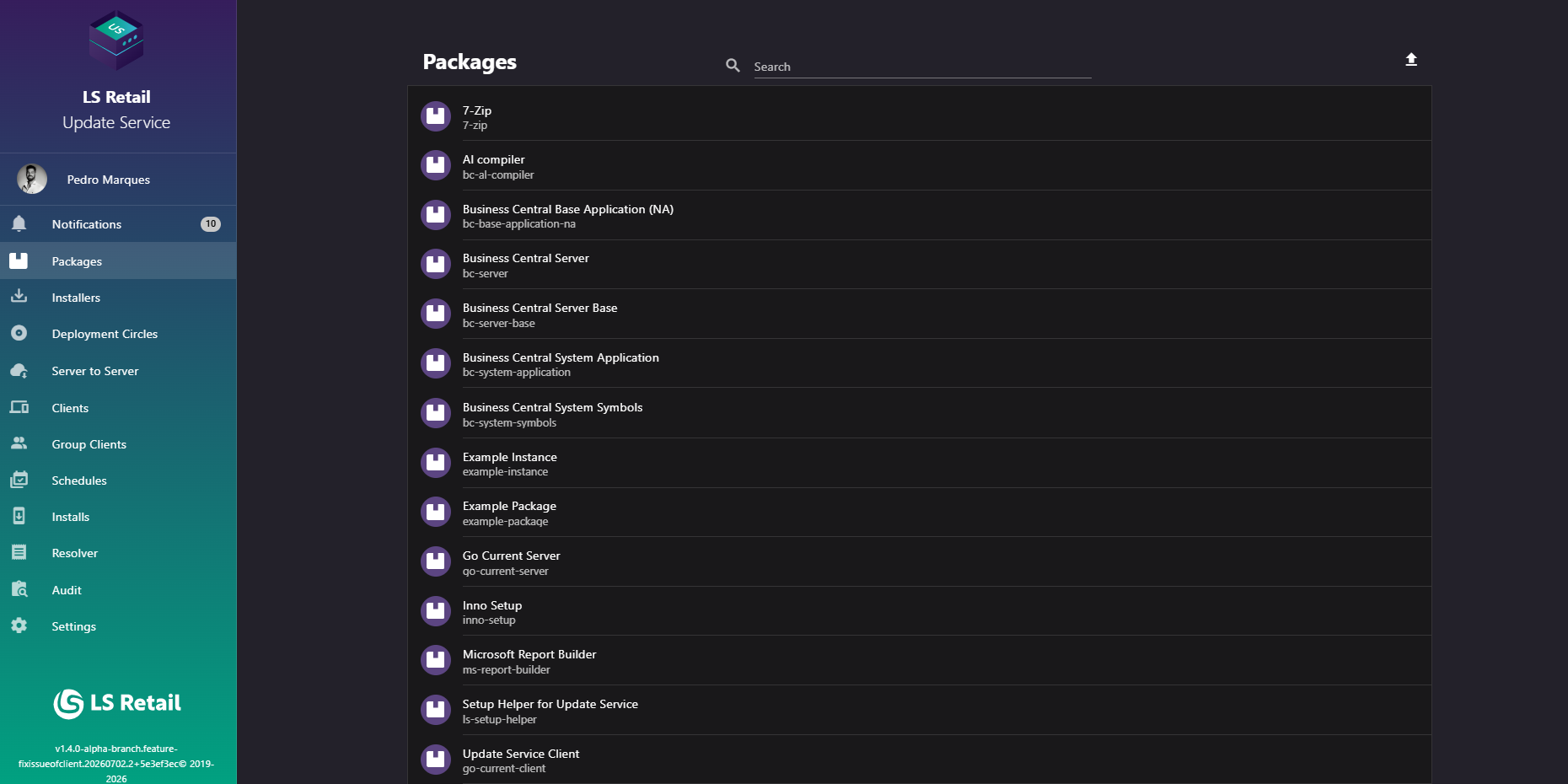
Figure: Interface overview of the Packages screen.
Key tasks
- Browse and search packages by name or package ID.
- Open a package to view its versions.
- Use Import Package to upload one or more
.zippackage files. The list refreshes after a successful import.
Interface elements
| Element / Field Name | Type | Description & Triggered Action |
|---|---|---|
| Search | Field | Free-text search box (with a search icon) used to filter the package list by name or package ID. Supports clearing the search with the built-in clear icon. |
| Import Package | Button | Opens the Add Multiple Packages dialog to upload new package files to the server. |
| Package list item | Grid/List Row | Each row displays the package name and package ID, with a package icon. Clicking a row navigates to the Package Versions screen for that package. |
Add multiple packages
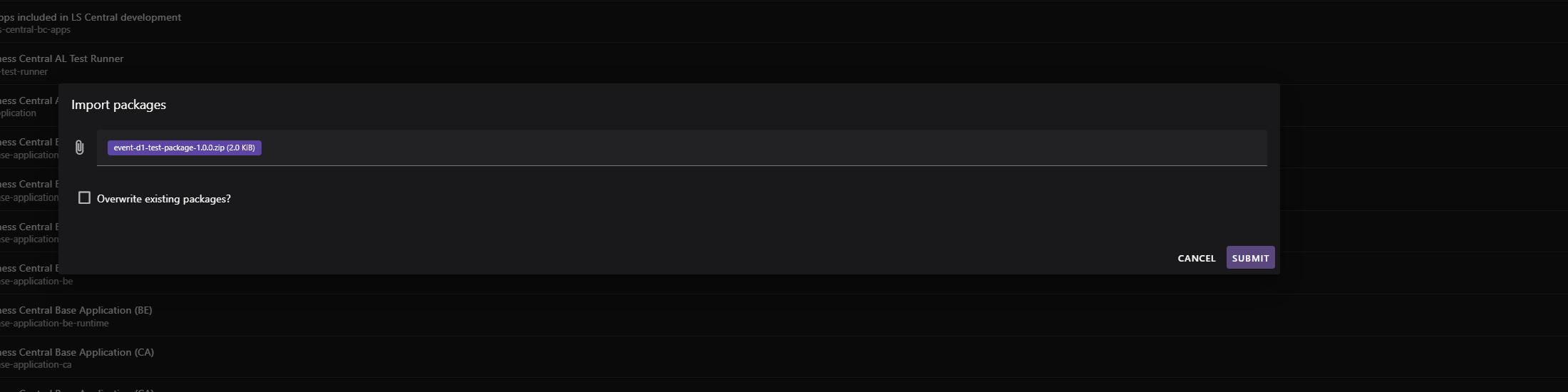
Use the Add Multiple Packages dialog to import one or more package files.
- Select one or more
.zippackage files. - Enable Overwrite existing packages? to replace an existing package version.
- Track each upload independently. Failed files show an error while other uploads continue.
- Cancel to stop uploads and clear the form.
- When uploads finish, the dialog closes and the package list refreshes.
| Element / Field Name | Type | Description & Triggered Action |
|---|---|---|
| File selector | Field | Accepts one or more .zip package files to be uploaded; required before the dialog can be submitted. |
| Overwrite existing packages? | Toggle (checkbox) | When enabled, an uploaded package version overwrites an existing one with the same identifier and version already on the server. |
| Upload progress list | Grid/Status Display | Shows one row per selected file with a progress bar and status message (uploading, succeeded, or failed with an error reason). |
| Cancel | Button | Cancels the import operation, stops any in-progress uploads, and closes the dialog. |
| Import (Submit) | Button | Starts uploading all selected files to the server. Disabled while an upload is already in progress. |