Schedules
Overview
Manage recurring time windows for group deployments and updates. A schedule allows updates during its configured windows and holds them outside those windows for associated Group Clients.
Key tasks
- View and search schedules.
- Open a schedule to manage its windows and status.
- Create a schedule.
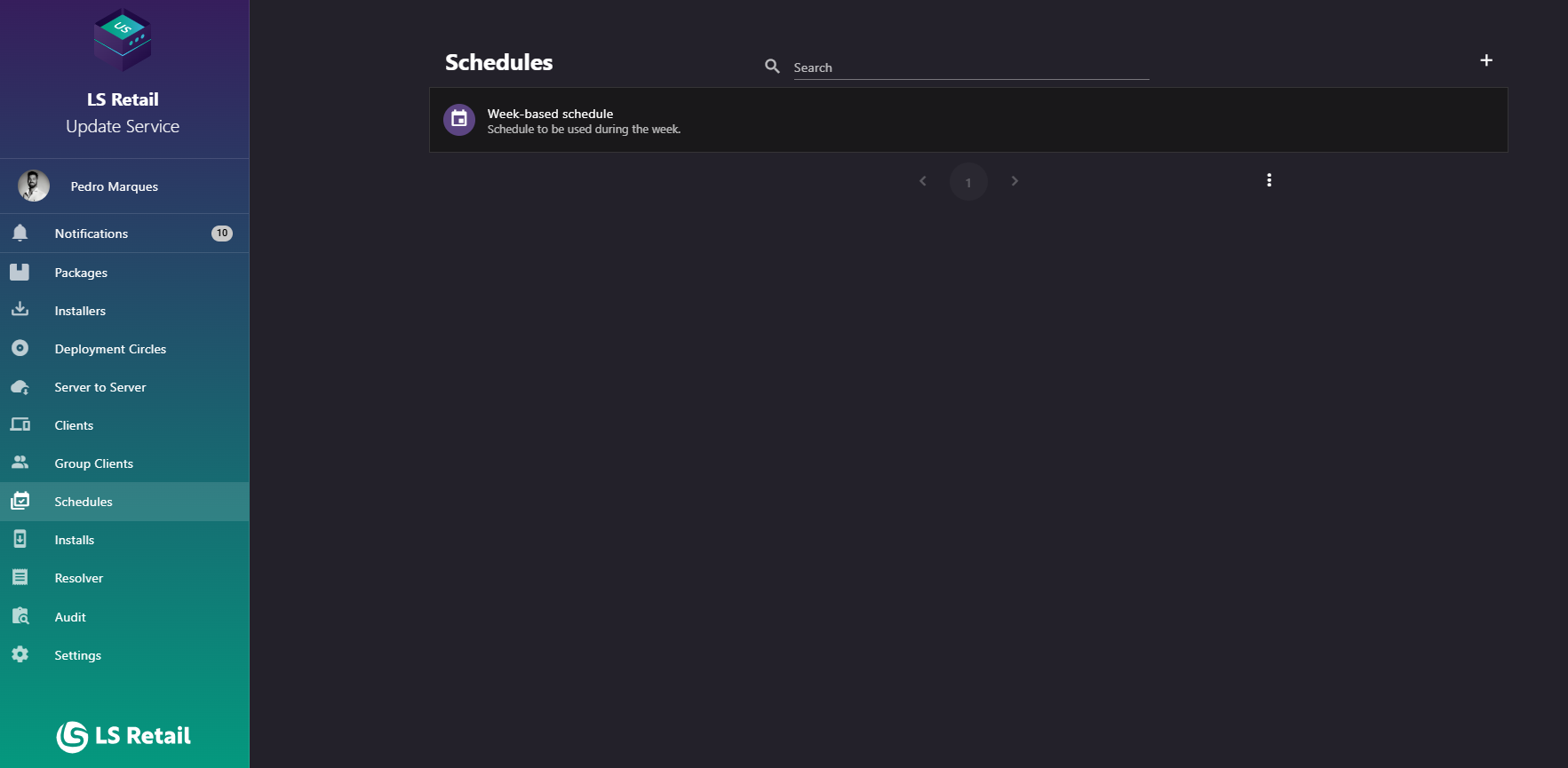
Figure: Schedules screen.
UI reference
| Element / Field Name | Type | Description & Triggered Action |
|---|---|---|
| Search | Field | Free-text search box (with a search icon) used to filter the schedule list by name. Supports clearing the search with the built-in clear icon. |
| Add | Button | Opens the Create/Edit Schedule dialog to register a new schedule. |
| Schedule list item | Grid/List Row | Each row displays the schedule's name as the title and its description as the subtitle, with a calendar icon. Clicking a row navigates to the Schedule Detail screen for that schedule. |
Create or edit a schedule
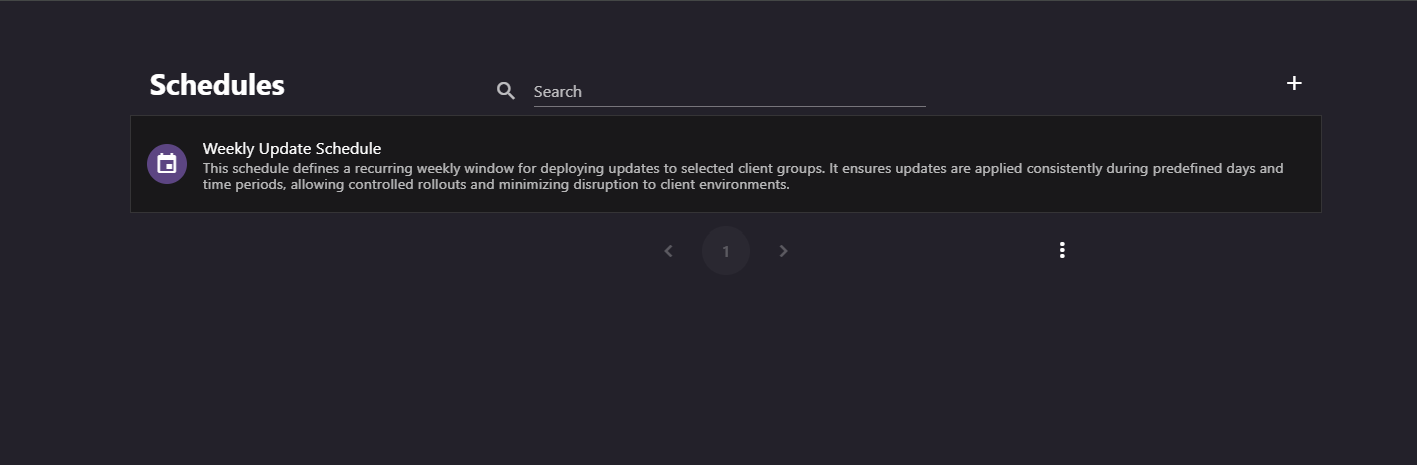
Figure: Interface overview of the creation of a new schedule screen.
Use this dialog to create a schedule or update an existing schedule. The title is New Schedule or Edit Schedule.
- Specify the Name of the schedule. Required.
- Specify the Description of the schedule. Required.
- Toggle whether the schedule is Active. New schedules are active by default.
- Submitting the dialog creates a new schedule, or updates the existing one if editing.
| Element / Field Name | Type | Description & Triggered Action |
|---|---|---|
| Name | Field | The display name of the schedule. Required. |
| Description | Field | A free-text description of the schedule's purpose. Required. |
| Active | Toggle | Determines whether the schedule is enforced. When off, the schedule's time windows are ignored and its groups behave as if no schedule were assigned. |
| Cancel | Button | Closes the dialog without saving changes. |
| Submit | Button | Saves the schedule (creates it if new, or updates it if editing) and closes the dialog. |