Monitor and troubleshoot installs
Use the Installs page to monitor client install activity, investigate failures, and export completed telemetry.
Before you begin
- Sign in to the Server Management interface. See Access and permissions.
- Ensure that clients have reported install telemetry.
Monitor an install
Open Installs. In-progress installs show a progress indicator and update as their status changes.
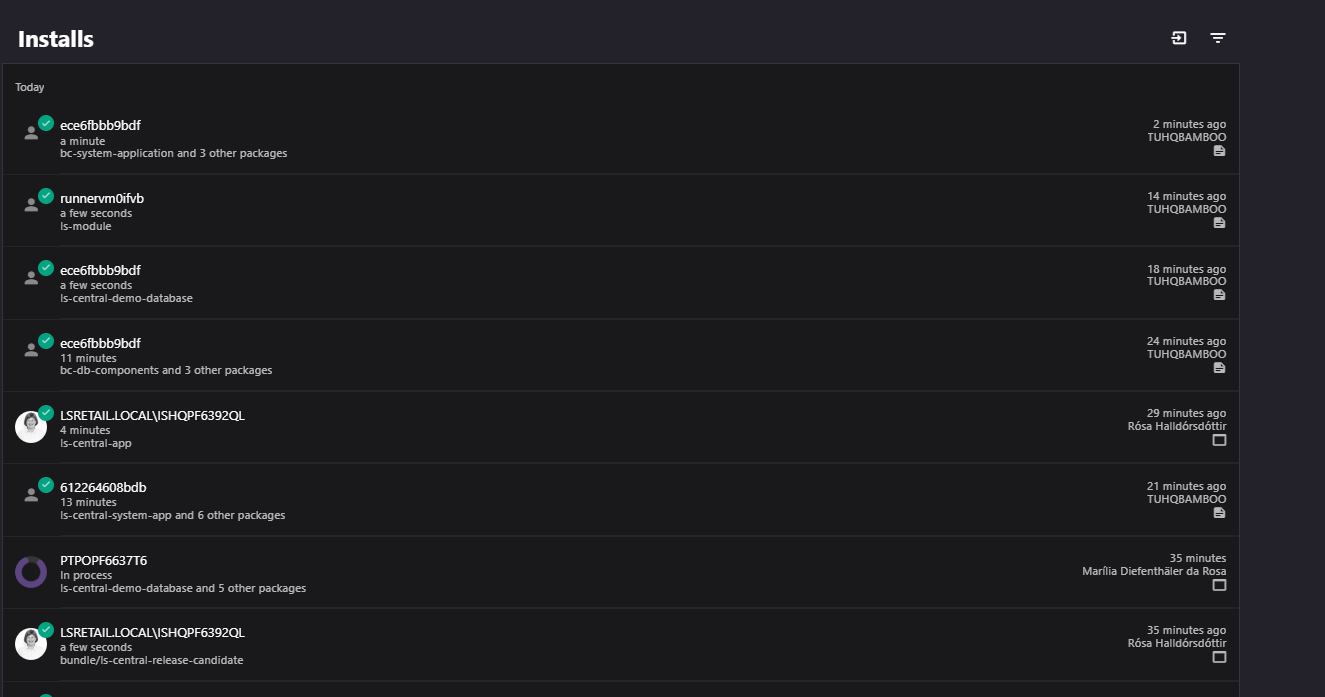
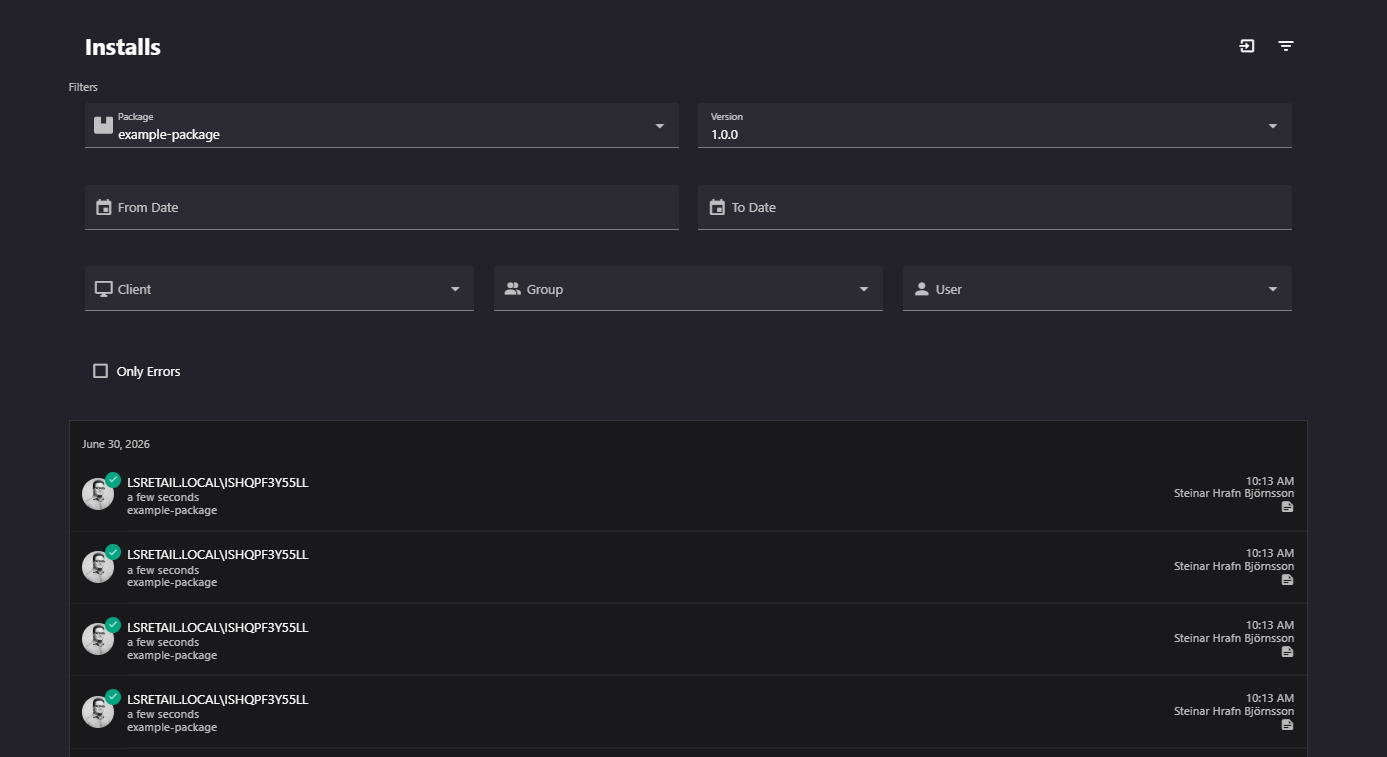
Select Show Filters to filter by package, version, date range, client, group, or user. See Filters. The User filter is available when user authentication is enabled.
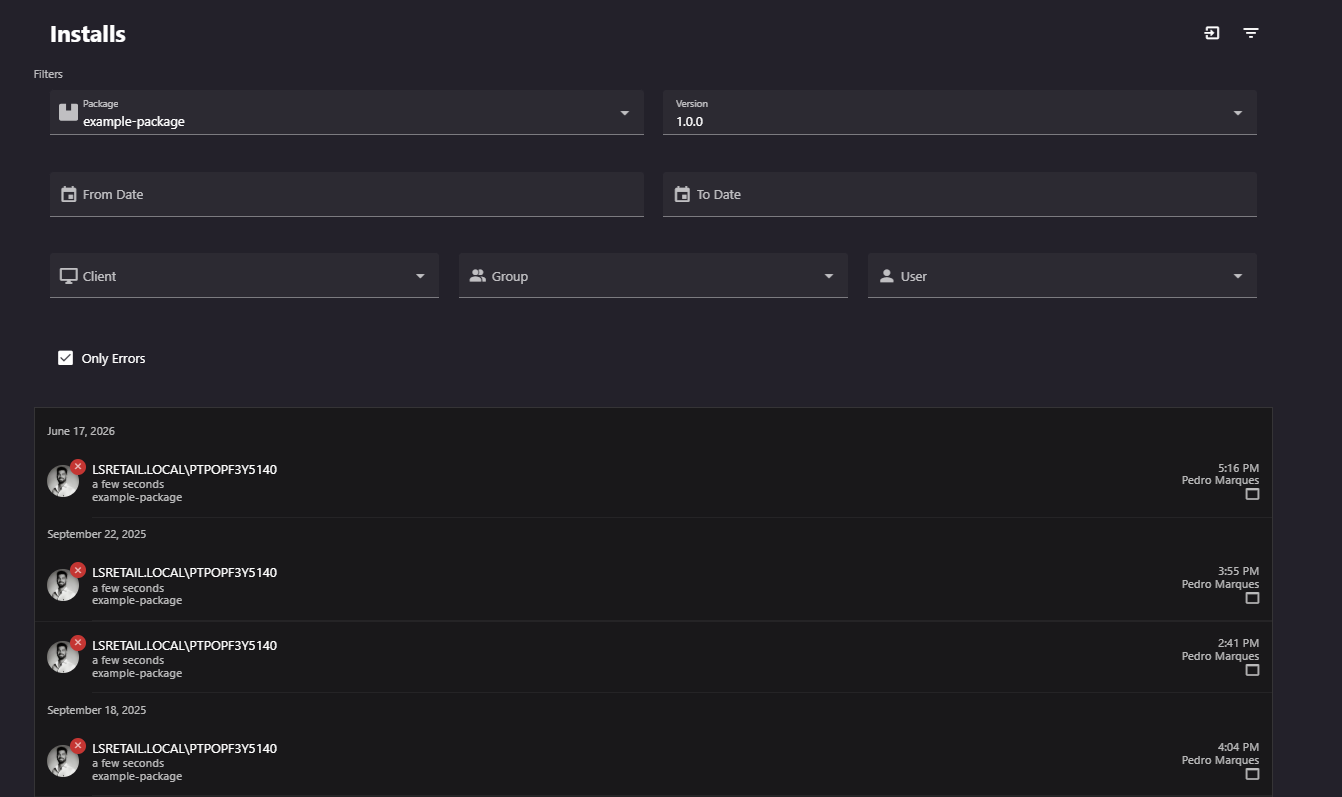
Select Only Errors to show failed installs. Combine it with package, version, group, or date filters to narrow the results.
Select an install to open Install Detail. Review the client, user, dates, download and install durations, and the Update Service component that performed the operation.
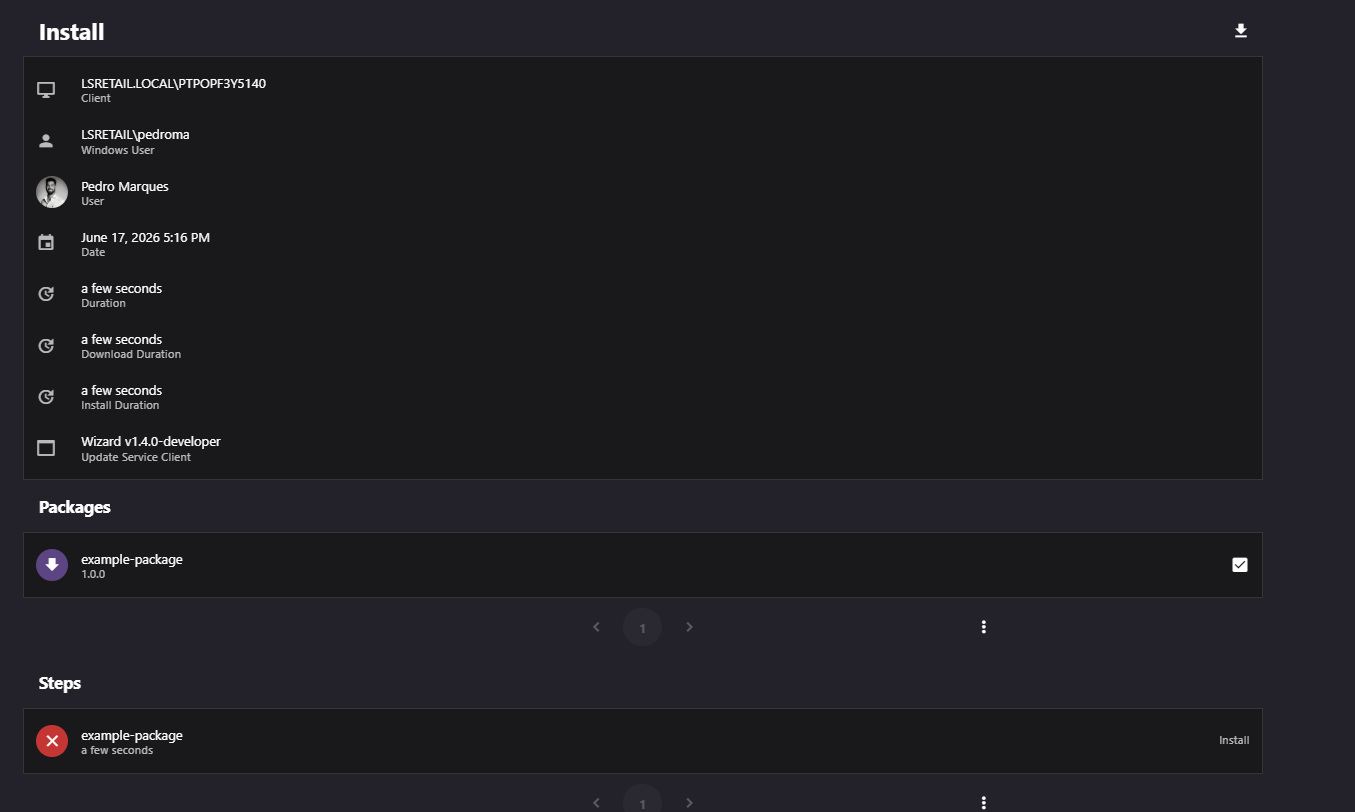
In Packages, review the package operations, version changes, and whether each package was explicitly selected or included as a dependency.
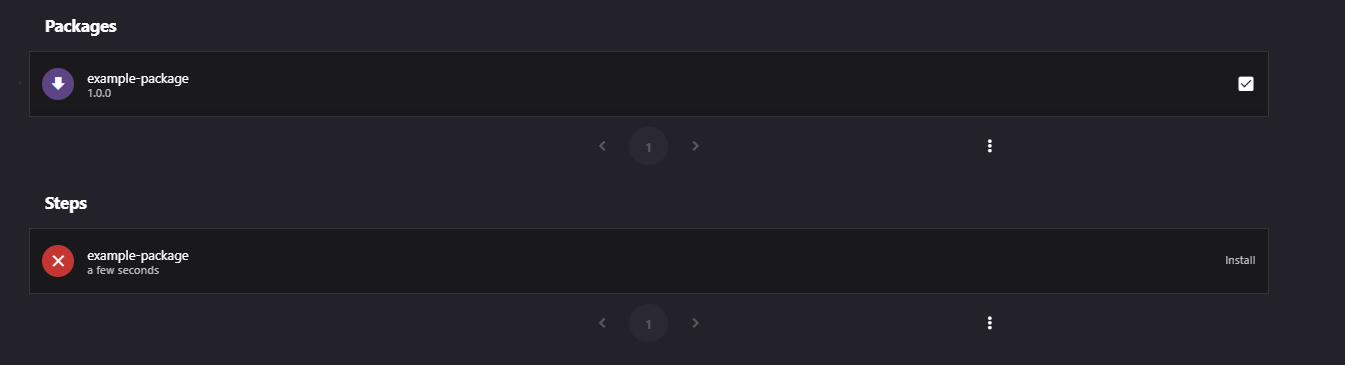
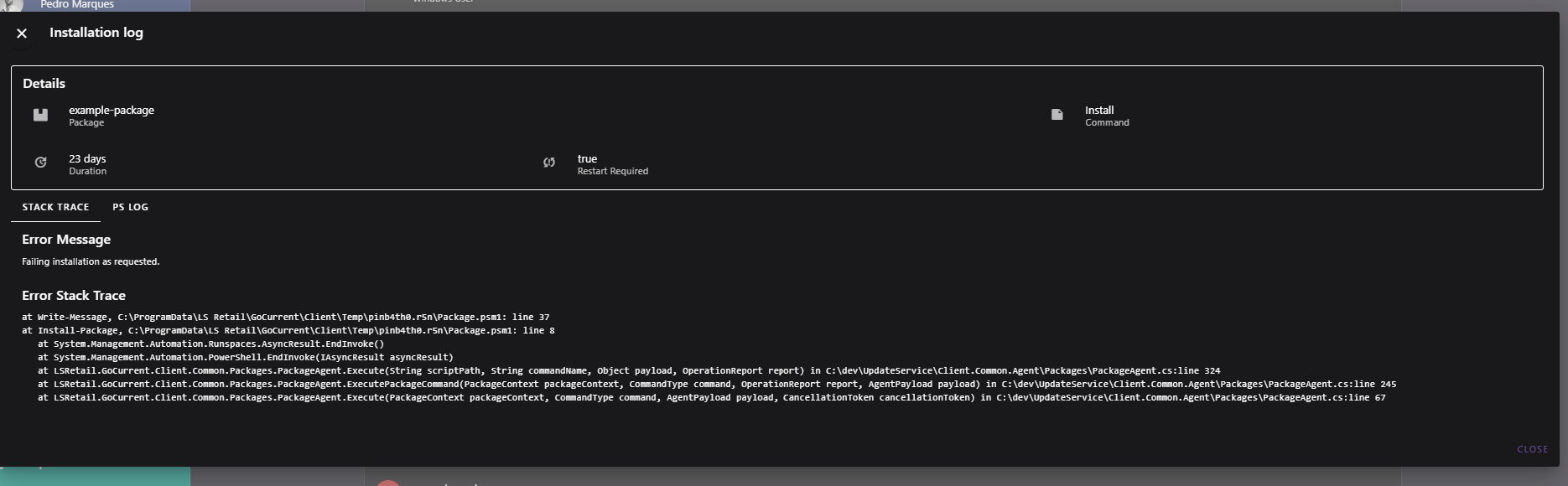
Select a failed step and review the Log dialog. Stack Trace, PS Log, and Event Log can help identify the cause.
After an install completes, select Export install telemetry to download its JSON record. You can share the record with support or import it through Import install telemetry on another server.

Troubleshooting tips
- Combine Package, Version, and Only Errors to investigate a release. Use Group and a date range to investigate a rollout audience.
- A selected indicator on Install Detail identifies a requested package; an empty indicator identifies a dependency.
- Compare download and install durations to distinguish transfer delays from install execution delays.
- Open the Client Detail page from an install to review the client's history, groups, and package state.